Why your slides need a real photo of you
A presentation with your face on it lands harder than a wall of text. Audiences trust a talk more when they can see the person giving it, and a clean portrait on your about-me slide sets that tone in the first 10 seconds.
The problem is most people paste in a cropped vacation shot or a webcam grab. Those photos look off on a large screen: harsh lighting, a busy background, a resolution that turns blocky when projected.
MakeAiPhotos fixes that from one selfie. You upload a single clear photo of your face and the AI generates brand-new photorealistic portraits of you on clean backgrounds. It does not edit or crop your original photo. It creates fresh images built around your actual features, sized and lit for slides.

One phone selfie to 4 AI photos of the same person


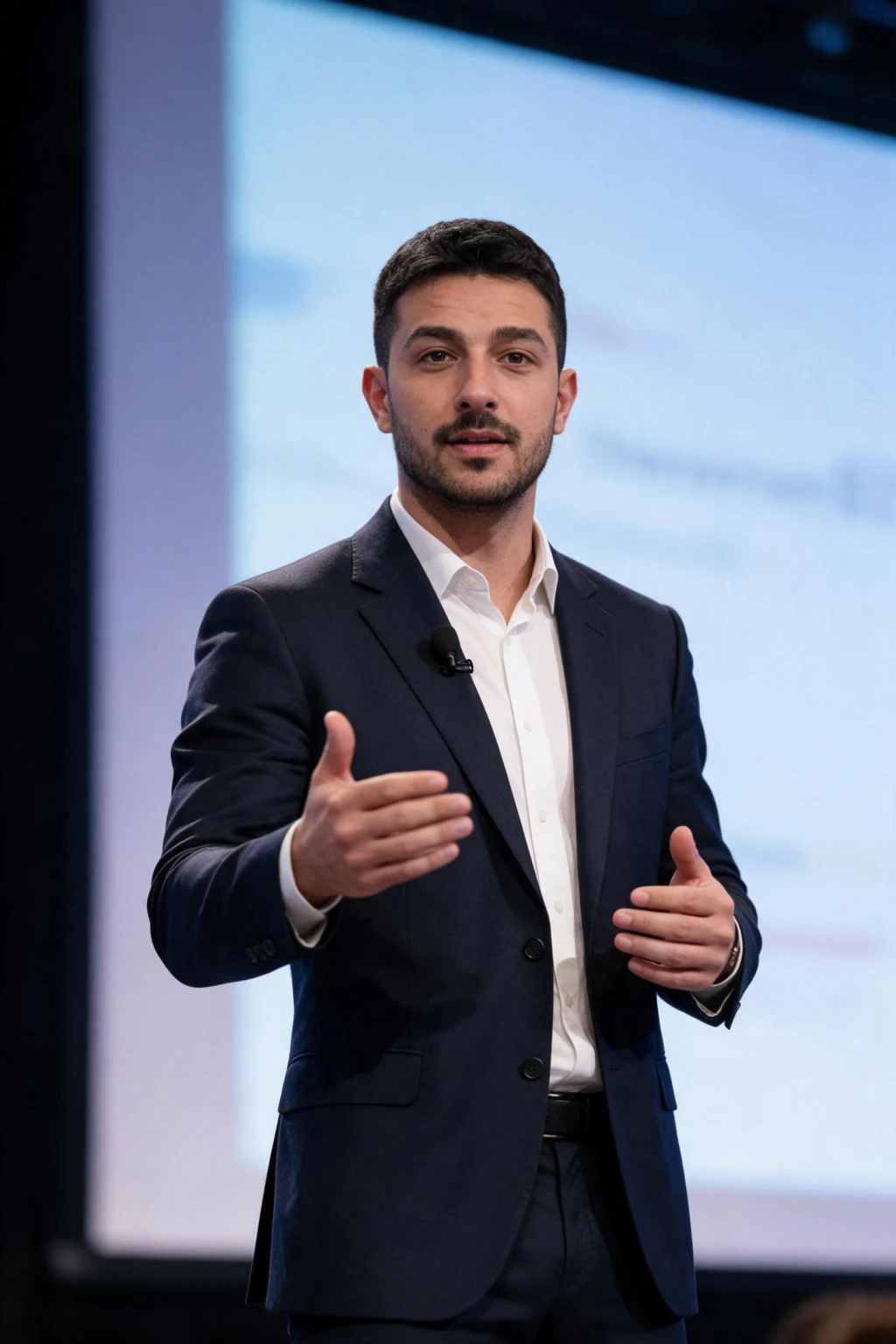
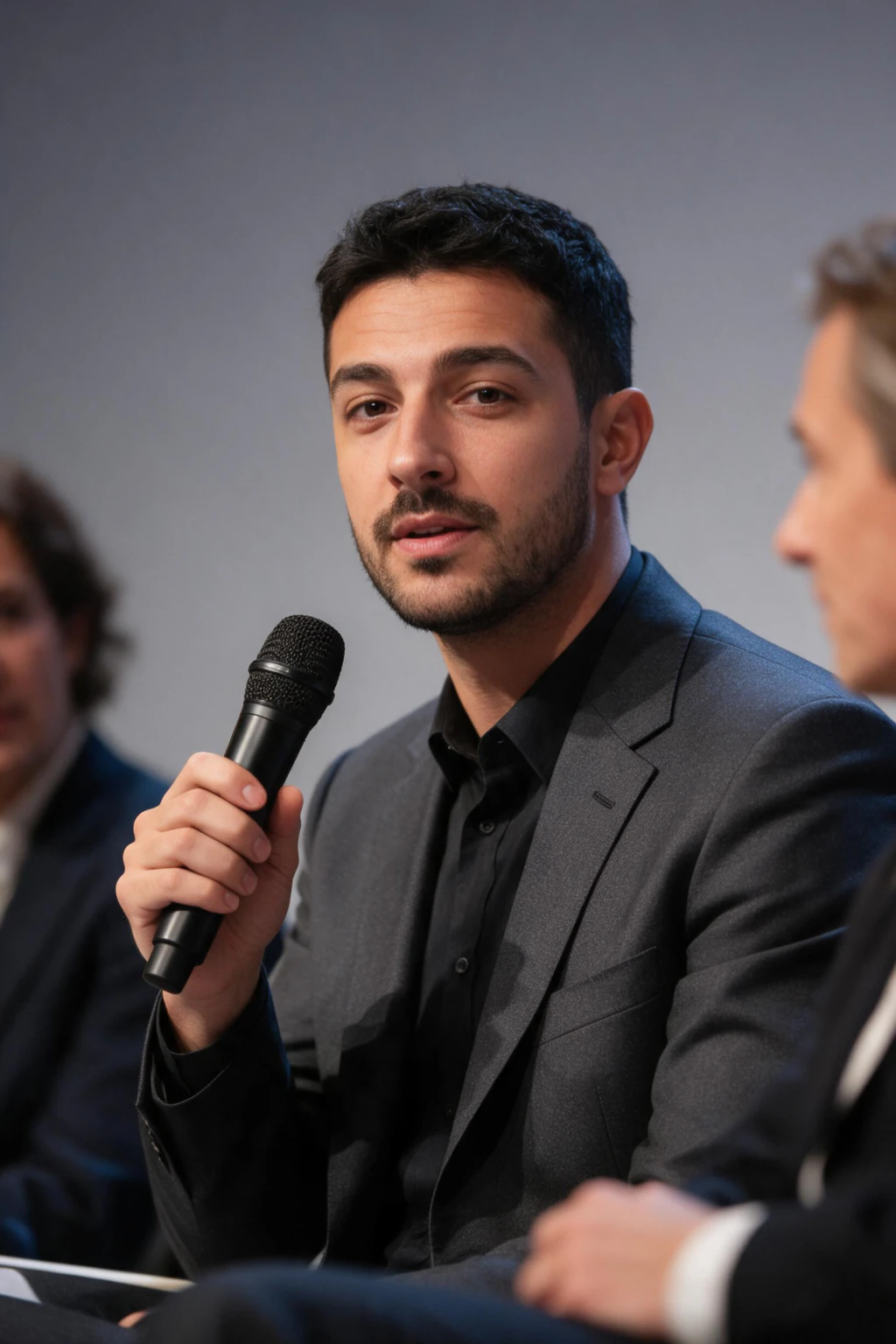

Which slide needs which photo? A slide-by-slide guide
Different slides need different framing. Here is where each AI photo goes and how to set it up.
About-me and bio slide: use a 4:5 or square crop with your face filling about 55 to 65 percent of the frame. A tight head-and-shoulders shot on a mid-tone background reads cleanly next to your name and title.
Speaker intro and webinar promo: go slightly wider so there is room for a title overlay. A 16:9 or 3:2 frame with your face on one side leaves space for text on the other. Keep the background plain so the type stays readable.
Team page slide: this is the one that breaks most decks. Generate every team portrait with the same background color, the same crop, and the same lighting direction so the row of faces looks like one set instead of five random photos.
Pitch deck founder slide: investors scan fast. A clean 4:5 portrait with a neutral or soft-blue background and a confident closed-mouth smile signals that you are prepared. Skip novelty backgrounds; they distract from your numbers.
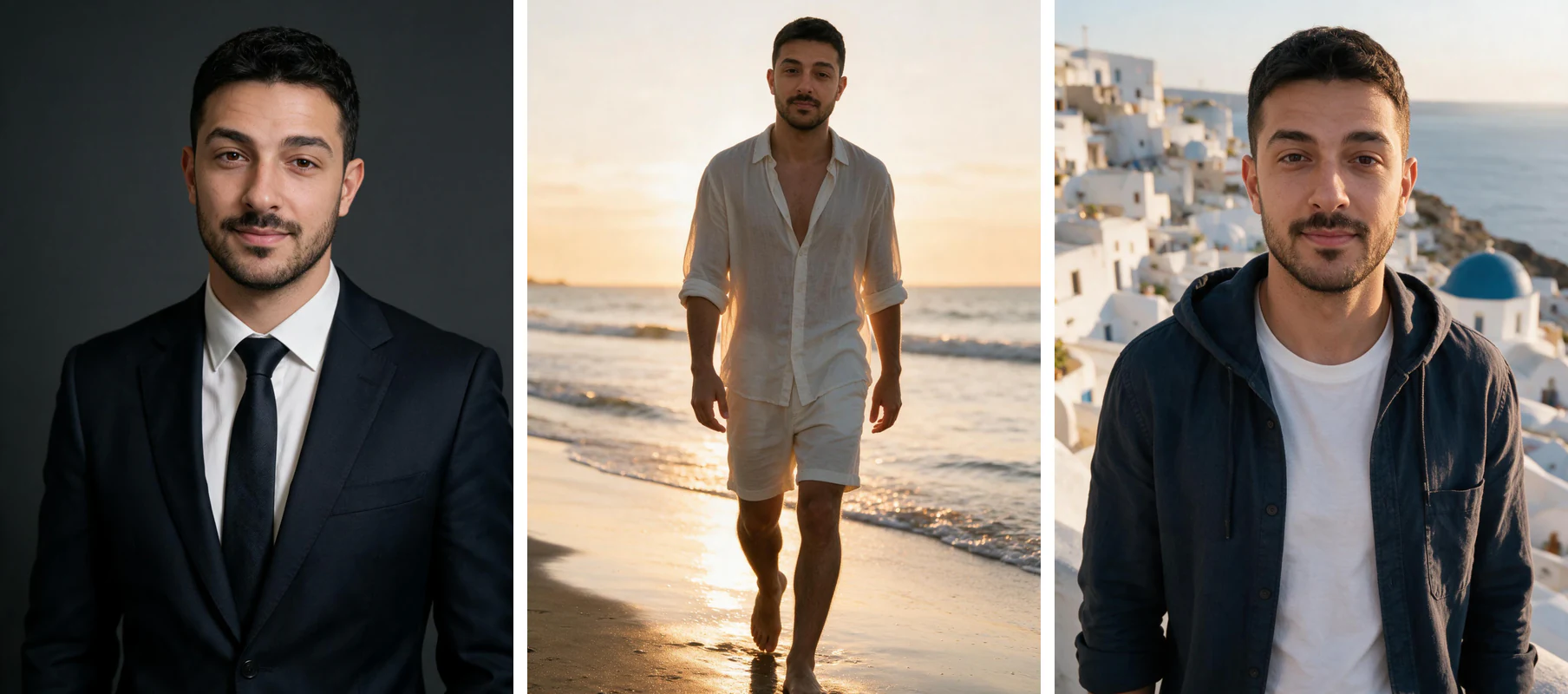
What makes a photo read well on a projector?
A projector flattens contrast and washes out detail, so a photo that looks fine on your laptop can disappear on a screen across the room. Three settings decide whether your portrait survives.
Background: pick a solid mid-tone. Navy, charcoal, mid-grey, or soft blue hold up under projector light. Pure white blows out and pure black swallows your shoulders. Ask for a plain background with no clutter.
Face size and contrast: your face should fill more of the frame than you think, around 60 percent for a bio slide. A slightly brighter face against a mid-tone background keeps you visible even when the room lights stay on.
Resolution: request the highest quality the tool offers, up to 4K. A 4K portrait scaled down to a slide stays crisp, while a 600 px webcam grab goes blocky the moment it fills a 16:9 frame.

How to keep every photo consistent across the deck
A deck falls apart when slide 2 shows you in warm studio light and slide 9 shows a cool grey webcam shot. Consistency is what makes the whole presentation feel designed.
Generate all your slide portraits in one session with the same instructions: same background color, same crop ratio, same outfit style, same lighting. Because the AI builds each image from your one selfie, you can produce a matched set instead of hunting for photos that happen to look alike.
Pick one background color for the entire deck and reuse it. If your team is on the same deck, have everyone generate portraits against that same color so the team slide lines up.
Save the versions you like. When you update the deck in three months, you regenerate matching shots instead of restarting your look from scratch.

How it works: from selfie to slide in three steps
You do not need a photographer, a backdrop, or design software. The full process takes about 2 minutes per photo.
Step 1: upload one clear selfie. Face lit evenly, eyes visible, no heavy filter or sunglasses. That single photo is all the AI needs.
Step 2: choose your look. Pick a background color, a crop that fits your slide, and a professional style, then generate. The AI creates brand-new photorealistic photos of you, not edits of your selfie.
Step 3: download in up to 4K and drop the portraits onto your slides. Use the 4:5 crops for bio and founder slides and the wider frames for intro and promo slides. Your deck now has a clean, consistent face on every slide it needs.
Frequently Asked Questions
- Are AI presentation photos free?
- No. MakeAiPhotos runs on one-time credit packs, not a subscription, so you pay once and keep the photos. Every purchase is backed by a 14-day money-back guarantee.
- Does the AI edit my existing slide photo?
- No. The AI does not edit, crop, or overlay your original photo. You upload one selfie and it generates brand-new photorealistic photos of you on clean backgrounds, built around your real features and sized for slides.
- What aspect ratio should I use for a pitch deck founder slide?
- A 4:5 or square crop works best for a founder slide, with your face filling about 60 percent of the frame on a neutral or soft-blue background. For a wider layout with a title next to your photo, request a 16:9 or 3:2 frame instead.
- How do I keep photos consistent across a team page slide?
- Generate every team portrait with the same background color, the same crop ratio, and the same lighting direction. Since each photo is generated from a person's selfie, you can match the whole row so it looks like one photo set instead of five different sources.
- Will an AI photo look good projected on a big screen?
- Yes, if you set it up for projection. Use a solid mid-tone background like navy, charcoal, or mid-grey, keep your face bright and large in the frame, and download at up to 4K so the portrait stays crisp when it fills a 16:9 slide.
- How long does it take to get photos for my presentation?
- Most people go from upload to slide-ready portraits in about 2 minutes. You upload one selfie, pick your background and crop, generate a matched set, and download the versions you want for each slide.