How do you make AI photos of yourself on your phone?
To make AI photos of yourself on your phone, open a browser-based AI photo generator like MakeAiPhotos, upload one selfie from your camera roll, pick a style pack, and download the results when they finish. The whole process runs in Safari or Chrome, with no app to install.
It works the same on iPhone and Android, because the render happens on a server rather than on your handset. The only things that matter are a recent unfiltered selfie and a normal data or Wi-Fi connection, so a clean shot on a four-year-old Android beats a rushed one on the newest iPhone. Each photo comes back in about 2 minutes, and there is no training step to wait through.
Nothing is installed. The generator is a website, so the upload and the download both happen inside the browser tab and nothing takes up storage.
The steps below walk through the whole thing, from taking a phone selfie the generator can read to saving the finished photos into your camera roll and posting them. There are also 6 copy-paste prompts further down if you would rather stay inside a chatbot.

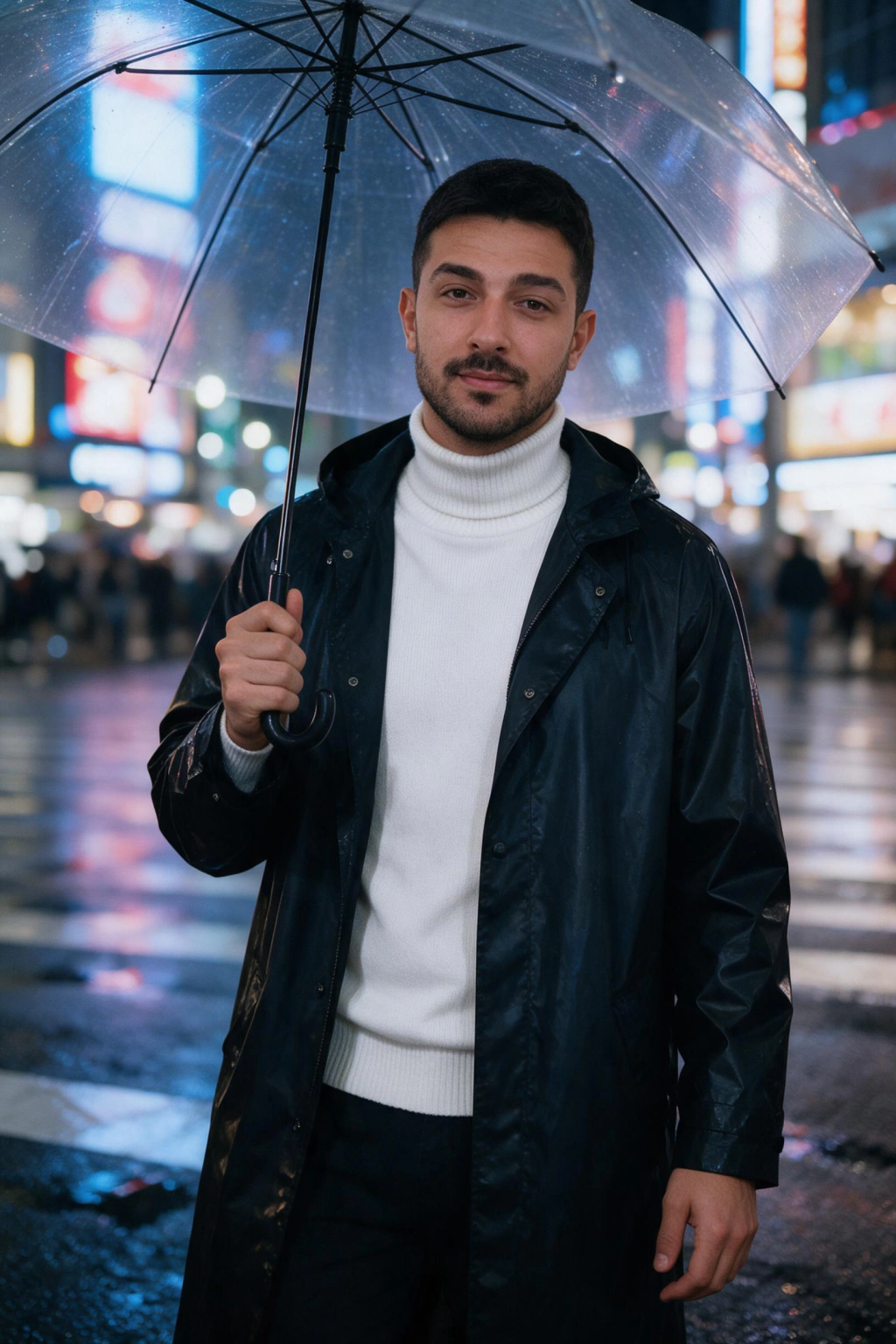
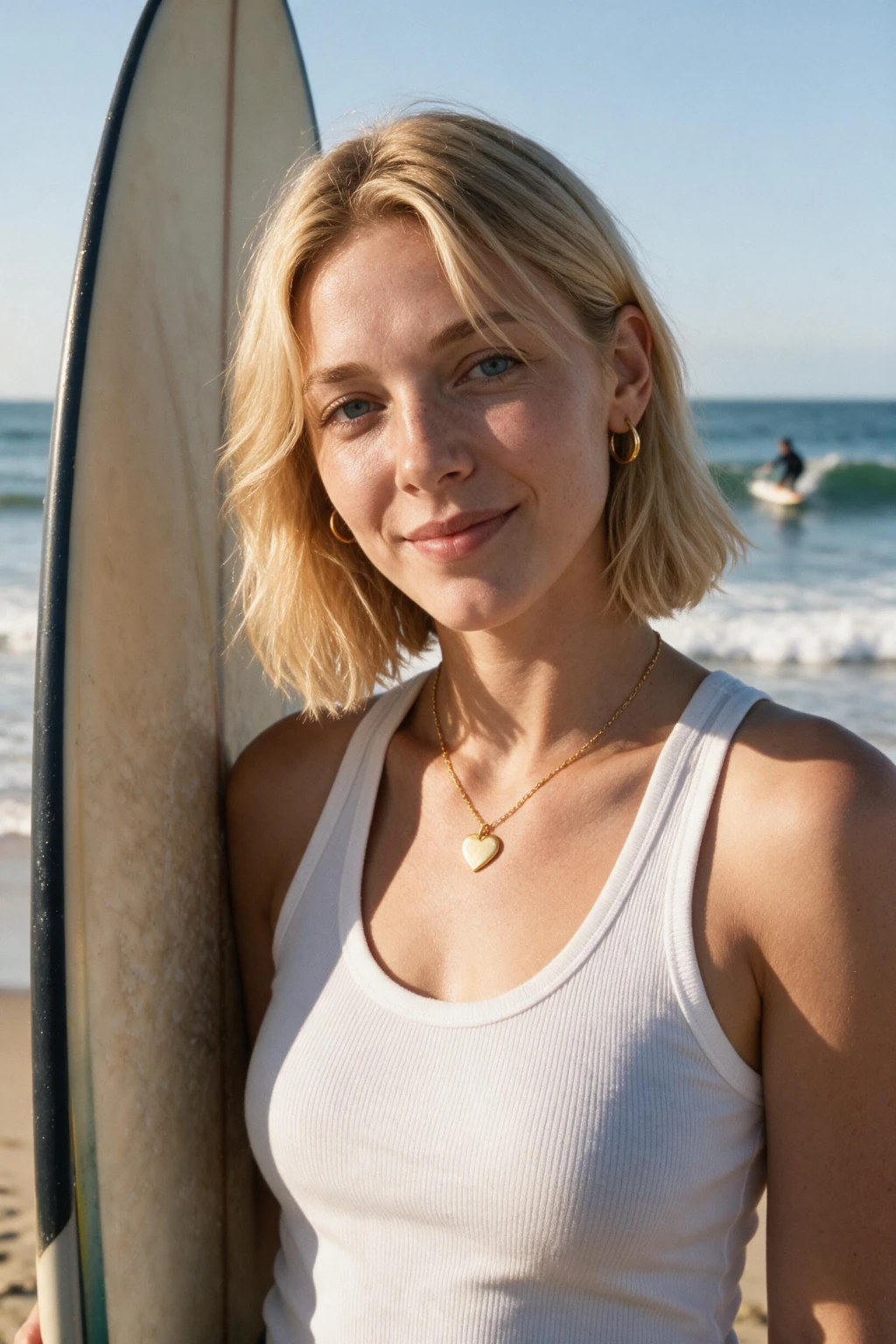
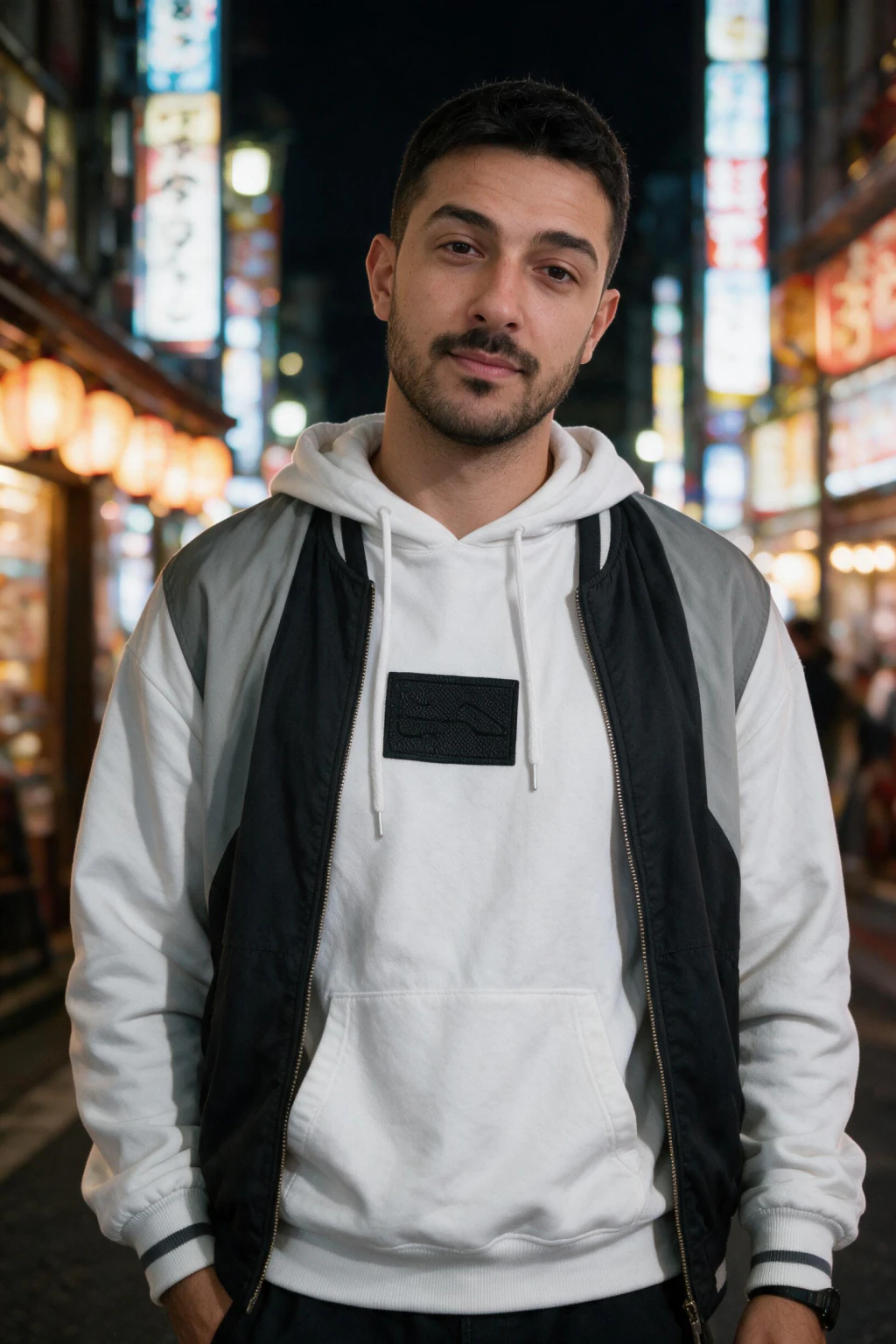
One phone selfie to 5 AI photos of the same person





6 copy-paste AI photo prompts you can paste from your phone
If you would rather stay inside a chatbot, the Gemini, ChatGPT and Nano Banana apps all take a photo attachment on a phone. Attach one clear selfie and paste one of the 6 prompts below. Each puts the face instruction first, names one light with a direction, and names a lens, because a one-line prompt hands back a stranger.
The failure is the same on every phone. Each attempt redraws your face, so the likeness moves between tries and you cannot get a matching set. Pick the look in the AI travel photo generator instead and the face stays put.
Profile Headshot, Window Light
Use the face in the uploaded photo exactly, same features, same skin tone, do not beautify or smooth skin. Head-and-shoulders photo of this person in a navy blazer and plain shirt, blurred office behind. Soft window daylight from camera left, one dim fill from camera right. 85mm lens look, shallow depth of field, visible skin texture, no HDR.
The one frame that works on every profile. Naming the window as the key light is what gives the face a lit side and a shadow side instead of flat phone-flash lighting.
Clifftop Trail Portrait
Use the face in the uploaded photo exactly, do not beautify. Waist-up photo of this person pausing on a clifftop coastal trail in a light windbreaker, hands on the backpack straps, looking out past the camera. Bright side light from camera left, open sea and a hazy headland behind. 35mm lens look, natural colour, fine grain.
The travel shot phones never get, because nobody is standing there to take it. Asking for haze on the headland is what builds depth instead of a flat painted backdrop.
Coffee Shop Window Seat
Use the face in the uploaded photo exactly, do not beautify. Waist-up photo of this person sitting at a cafe window table with a plain white cup, no readable text on the cup or the window. Bright overcast daylight through the glass from camera left, warm dim interior behind. 50mm lens look, natural colour, slight grain.
Banning readable text matters more than it sounds. Left open, the model invents a garbled cafe logo on the cup, and that is the first thing anyone zooms in on.
Morning Run, Empty Street
Use the face in the uploaded photo exactly, do not beautify. Waist-up photo of this person catching their breath on an empty street after a run, plain running top with no printed text, hands on hips, looking off camera. Low sun from camera right, long shadows on wet tarmac, blurred railings behind. 50mm lens look, visible skin detail, slight sweat sheen, no oversharpening.
Wet tarmac is what grounds an outdoor frame, because the reflection ties your feet to the surface. Asking for sweat sheen keeps the skin from rendering plastic.
Golden Hour on the Bridge
Use the face in the uploaded photo exactly, do not beautify. Waist-up photo of this person in a well-fitted coat leaning on a footbridge rail at sunset, relaxed genuine smile, looking just past the camera. Warm low sun from camera right, river and out-of-focus skyline behind. 50mm lens look, natural colour, fine grain.
Asking for a relaxed smile rather than a broad one keeps this off the stock-photo end, where every face is the same amount of happy.
Night Street, Neon Behind
Use the face in the uploaded photo exactly, do not beautify. Head-and-shoulders photo of this person on a wet city street at night, plain dark jacket, blurred coloured signage behind with no readable words. One cool shopfront light on the face from camera left, warm glow behind the shoulders. 35mm lens look, ISO 1600, visible grain, no HDR.
Two light temperatures, cool on the face and warm behind, is what separates a real night photo from a flat composite. Phones cannot shoot this at all without a tripod.
Step 1: Take a phone selfie the generator can read
Your phone is the only camera you need, but how you shoot matters. Open your camera and turn off beauty mode or any filters first. On most phones this is in the camera settings or the effects panel. A filtered selfie hands the generator an edited face, not yours.
The shot people skip most: prop your phone against something, set a 3-second timer, and step back from it. Arm's-length selfies use a wide lens that distorts your face. A timer shot on the rear camera gives the AI your true proportions.
You do not need to take new photos if your camera roll already has good ones. Recent, well-lit, unfiltered photos where your face is clear work fine.
Step 2: Upload your selfie from your phone browser
Open your phone's browser, Safari on iPhone or Chrome on Android, and go to the AI photo generator. With MakeAiPhotos you create an account, then start a new upload.
Tap the upload button and your phone offers your photo library. Select your one chosen selfie. On iPhone you can pick straight from Photos, on Android from Google Photos or Files. One selfie uploads over Wi-Fi in a few seconds.
There is no app download. The generator runs as a website, so it works the same whether your phone is new or a few years old, and it does not take up storage.

Step 3: Pick a pack and generate
After your selfie uploads, the generator renders your photo on a server, not your phone, so you can lock your phone or switch apps while it works. Each photo comes back in about 2 minutes.
Next, pick a style pack: LinkedIn headshots, travel, summer, gym, or another look. Each pack is a set of ready-made scenes, so you do not write any prompts. Tap generate and the AI creates a batch of new photos of you in that setting.
You can run more than one pack from the same upload. Pick LinkedIn first, then come back later for travel or lifestyle photos without uploading again.
Step 4: Save and post the results from your phone
When your batch is ready, review the photos at the size people actually see them, a small profile circle, not full screen. Press and hold any photo to save it to your camera roll, or use the download button.
From your camera roll you can post straight to LinkedIn, Instagram, a dating app, or send a photo to a team page admin. The files are full resolution, so they stay sharp as profile photos and posts.
Keep your best 5 to 10 and delete the rest. A small, strong set is more useful than a camera roll full of near-duplicates.
iPhone vs Android: does it matter?
The short answer: your phone model barely matters. iPhone and Android both run the process through a normal browser, and the heavy work happens on a server, not your handset.
What changes your results is the selfie you upload, not the phone you upload it from. A clean, well-lit selfie on a 4-year-old Android beats a rushed one on the newest iPhone.
iPhone
Use Safari or Chrome. Upload from Photos. Press and hold a result to save it to your camera roll.
Android
Use Chrome. Upload from Google Photos or Files. Tap download or hold a photo to save it to your gallery.
Older phones
Because the generator runs as a website and renders on a server, a phone a few years old works the same as a new one.
What does matter
Selfie quality and lighting decide your results far more than your phone model or brand.
How to make AI photos on your phone with no app install
You do not need to install any app to make AI photos of yourself on your phone. MakeAiPhotos runs entirely in Safari on iPhone or Chrome on Android, so the whole flow lives inside a browser tab. That keeps your storage clean and skips the App Store and Play Store entirely.
Type makeaiphotos.com into your address bar, tap upload, and the browser asks for access to your Photos or Files. Pick your one selfie, confirm, and the upload starts. Browser uploads on iOS and Android handle HEIC, JPG, and PNG, so you do not need to convert anything first.
If you want a quick shortcut, tap the share icon in Safari and choose Add to Home Screen. That puts a tappable icon on your home screen that opens the generator like an app, with no install, no permissions prompt, and no background processes.
Common phone problems and quick fixes
If your upload stalls, switch from cellular to Wi-Fi and retry. Most failed uploads on a phone come down to a flaky 4G signal, not the generator. If the upload hangs on a big HEIC file, open the photo, tap edit, save, and upload the smaller JPG instead.
If your browser logs you out mid-flow, open the AI photo generator again, log back in, and your upload and saved photos are still there. The render runs on a server, so nothing is lost when your phone screen locks or your browser tab refreshes.
If your AI photos do not look like you, the fix is almost always in your selfie, not your phone. Re-upload one unfiltered, well-lit, front-facing photo. Beauty mode, heavy filters, and arm's-length shots are the top causes of off-looking results.
If a saved AI photo will not upload to a dating app or LinkedIn, the file is probably still HEIC. Open it from your camera roll, tap edit, and save again. iPhone and Android both convert to JPG on edit-save, which every social app accepts.
Frequently Asked Questions
- Can you make AI photos of yourself on your phone?
- Yes. You can make AI photos of yourself entirely on a phone. Open a browser-based generator like MakeAiPhotos, upload one selfie from your camera roll, pick a style pack, and download the results. It works the same on iPhone and Android with no app install.
- How do I make AI photos of myself on iPhone?
- Open Safari or Chrome on your iPhone, go to the AI photo generator, and create an account. Upload one selfie from your Photos library, pick a style pack, and generate. When the batch is ready, press and hold a photo to save it to your camera roll.
- How do I make AI photos of myself on Android?
- Open Chrome on your Android phone and go to the AI photo generator. Upload one selfie from Google Photos or Files, pick a style pack, and tap generate. When your results finish, use the download button or hold a photo to save it to your gallery.
- How long does it take to make AI photos on your phone?
- About 2 minutes per photo. Uploading one selfie takes under a minute and there is no training step, so the first finished photo lands about 2 minutes later. You can lock your phone or use other apps while the AI works.
- Can I upload HEIC photos from my iPhone to make AI photos?
- Yes. The iPhone camera saves selfies as HEIC by default and HEIC uploads fine from Safari or Chrome. You do not need to convert your photos to JPG first. Recent Android phones using HEIF or JPG also upload without any conversion step.
- How many selfies do I need to upload from my phone?
- One. The flow takes a single photo, so a second upload adds nothing. Use one clear, mid-distance selfie taken in good natural light on the rear camera, with beauty mode off, and the generator builds every scene around that one face.
- How much does it cost to make AI photos of yourself on your phone?
- $9.99 one time buys 100 credits, which is about 10 finished photos at 10 credits each. Pricing is the same whether you use iPhone, Android or a laptop, since the work runs on a server rather than on your handset, and a 14-day money-back guarantee comes with it.