How do you make AI photos look realistic? The 60-second answer
To make AI photos look realistic in 2026: upload one front-facing selfie taken on the rear camera, turn off beauty mode before shooting, pick a natural lifestyle pack instead of a dramatic editorial one, filter results for visible skin texture and matched eye catchlights, and mix one or two AI photos with real candids. MakeAiPhotos is a selfie-trained AI photo generator that creates realistic AI photos of you from your selfie in about 2 minutes. Each fix below explains why it works.
This guide was last updated on August 24, 2026 and reflects current 2026 image-model behaviour, current iPhone and Android front-camera lens specs, and the realism standards viewers now apply on LinkedIn, Instagram, and dating apps. If you are a first-time user looking for a step-by-step walkthrough with concrete numbers, our beginner guide on how do I make AI photos look realistic is the companion piece. If you want the prompt-engineering side for text-to-image tools, see the best AI prompt for realistic photos guide. This post is the full fix list.
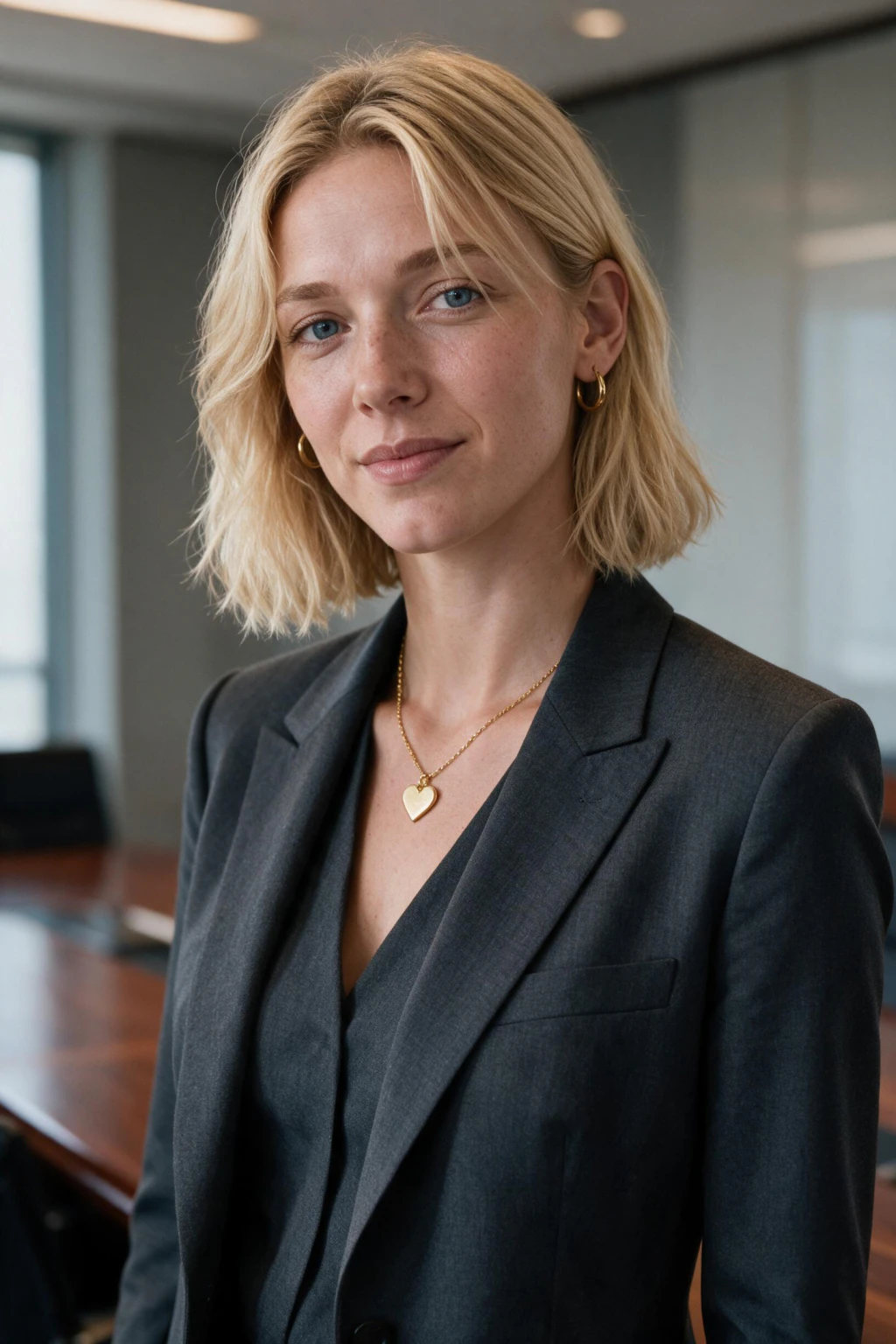
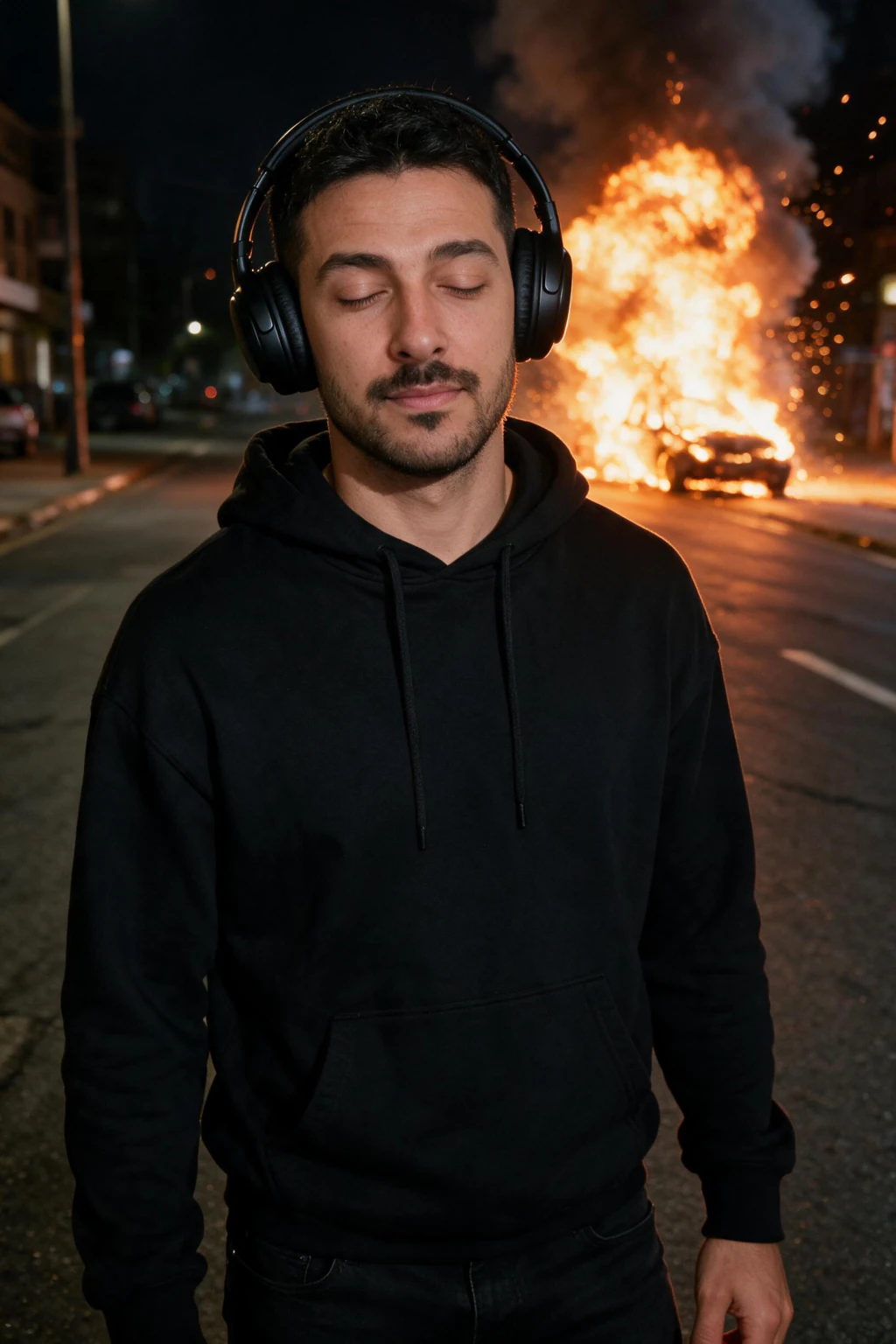
One phone selfie to 5 AI photos of the same person
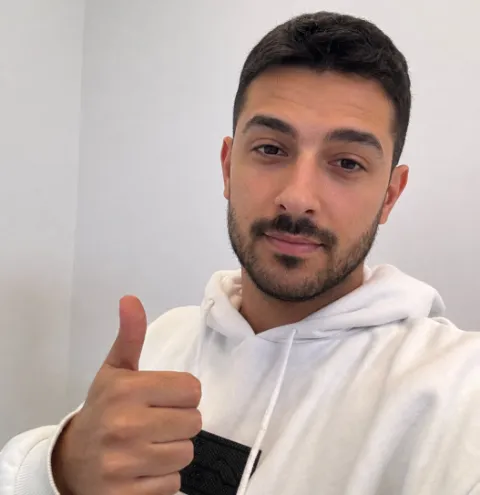
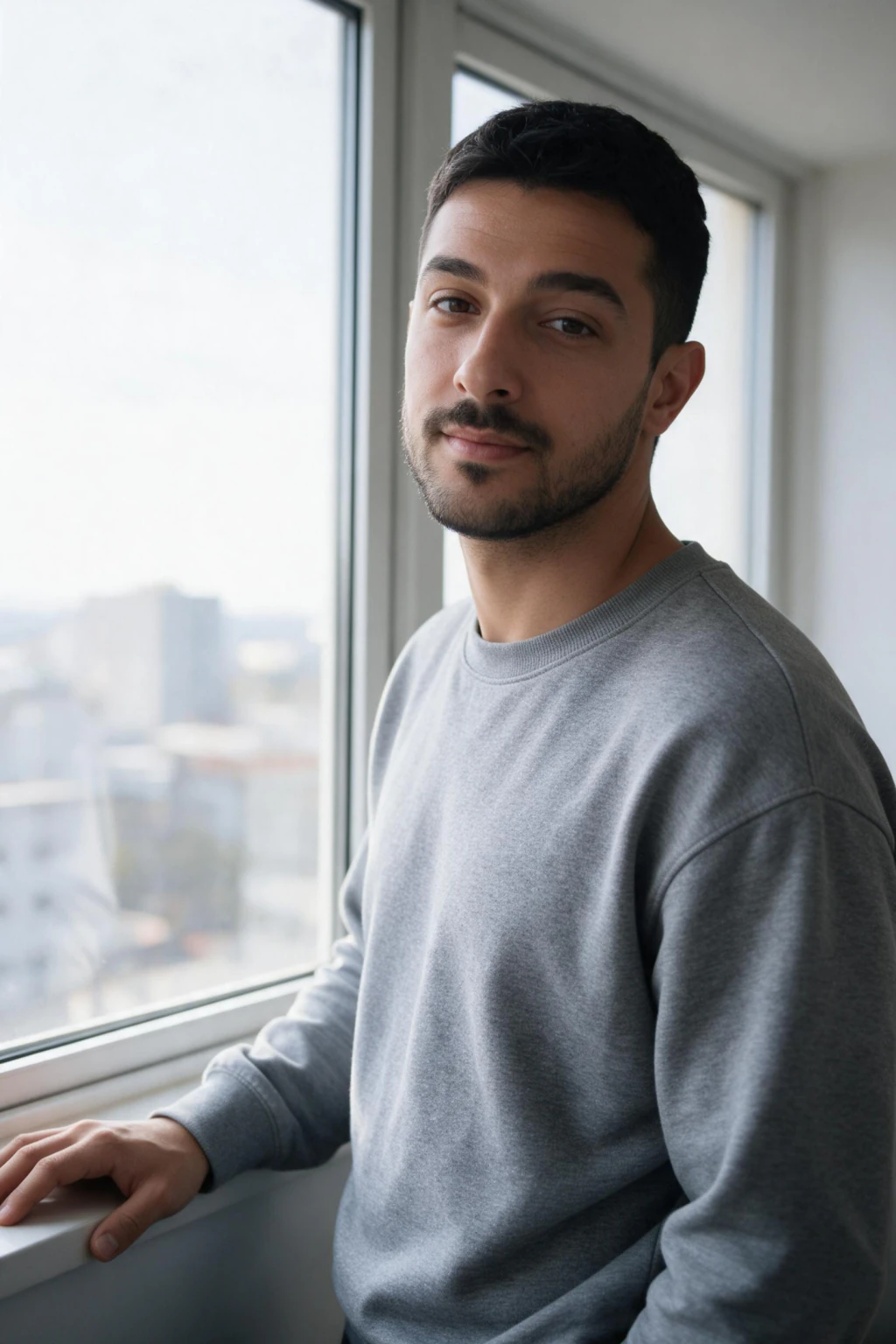
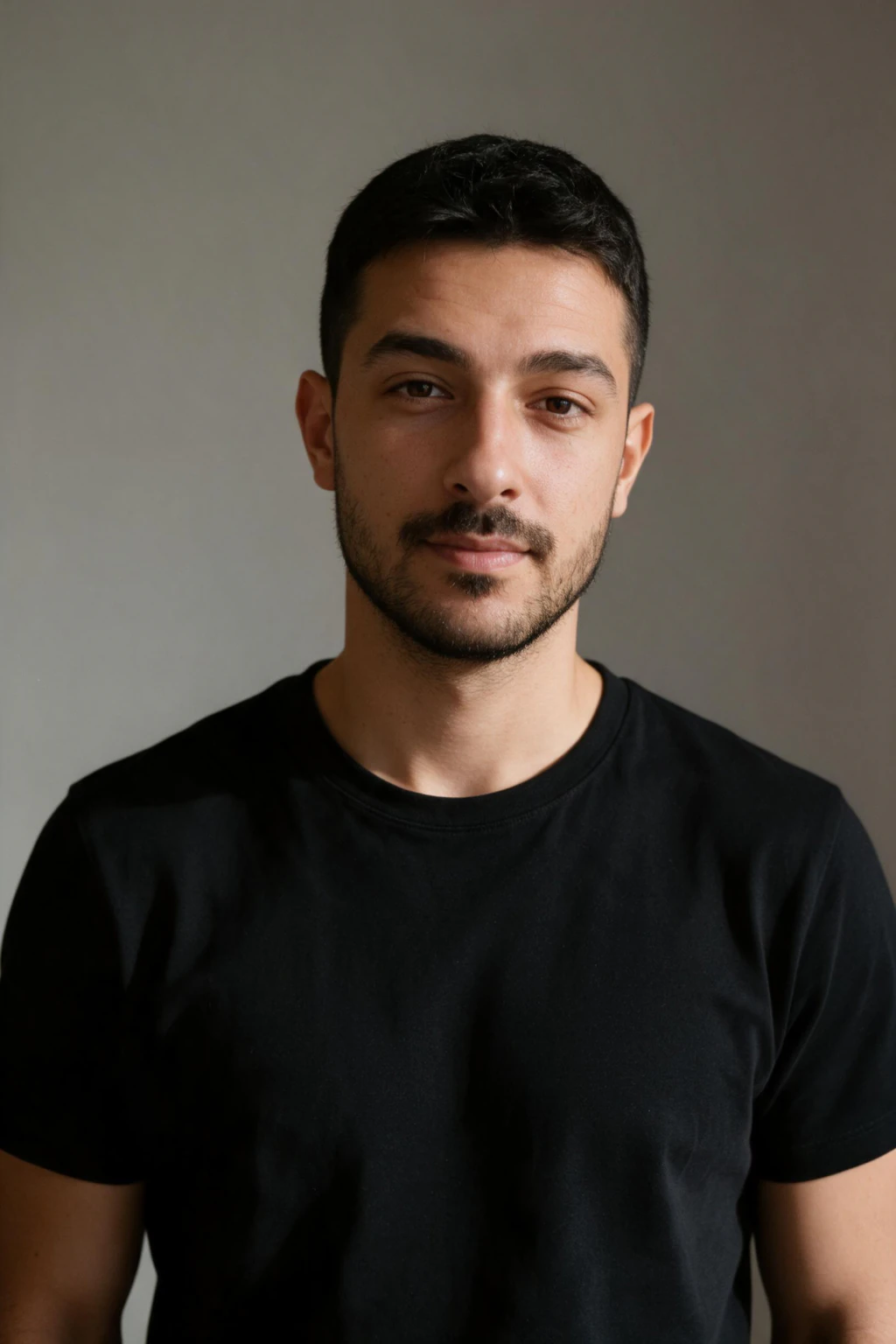
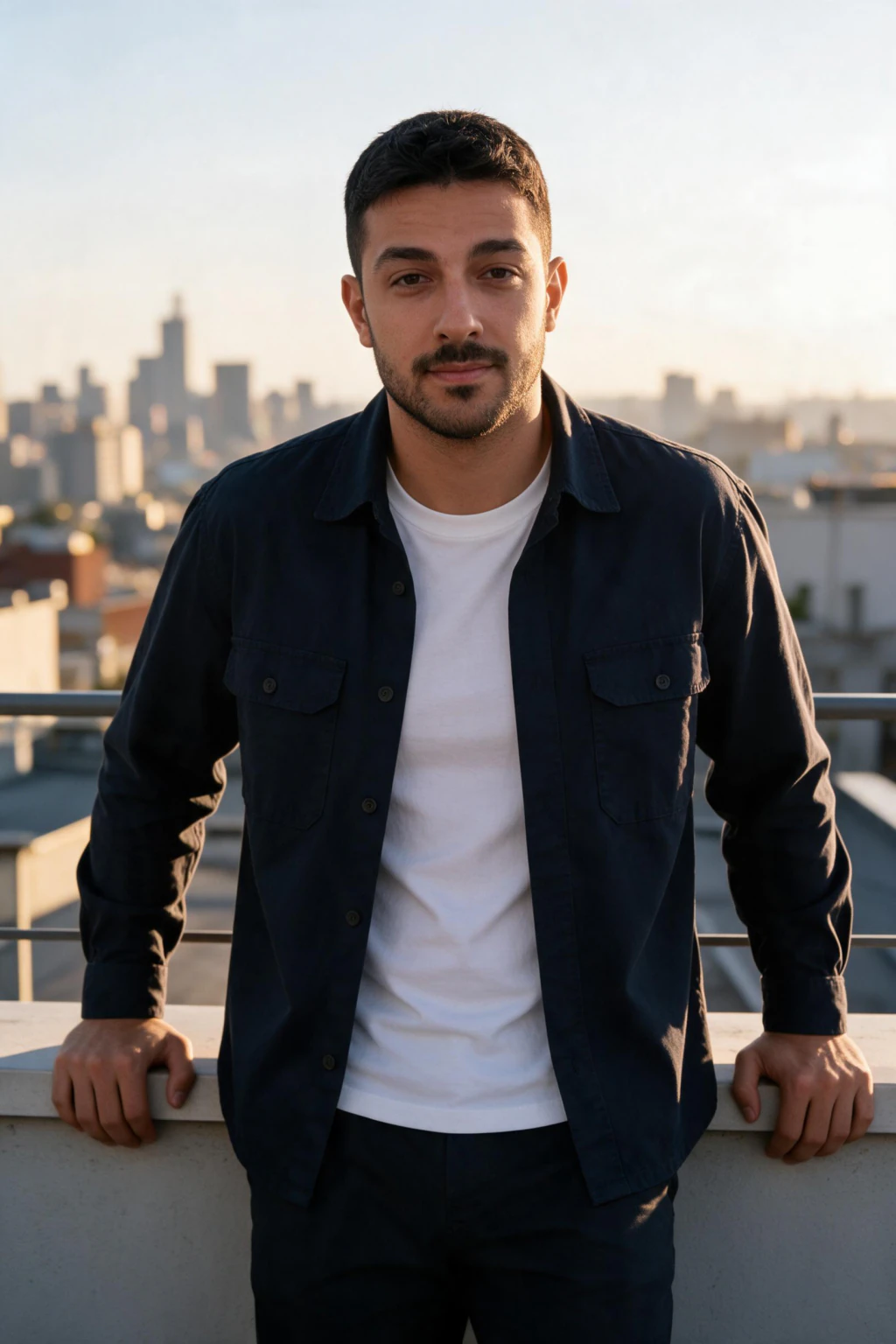
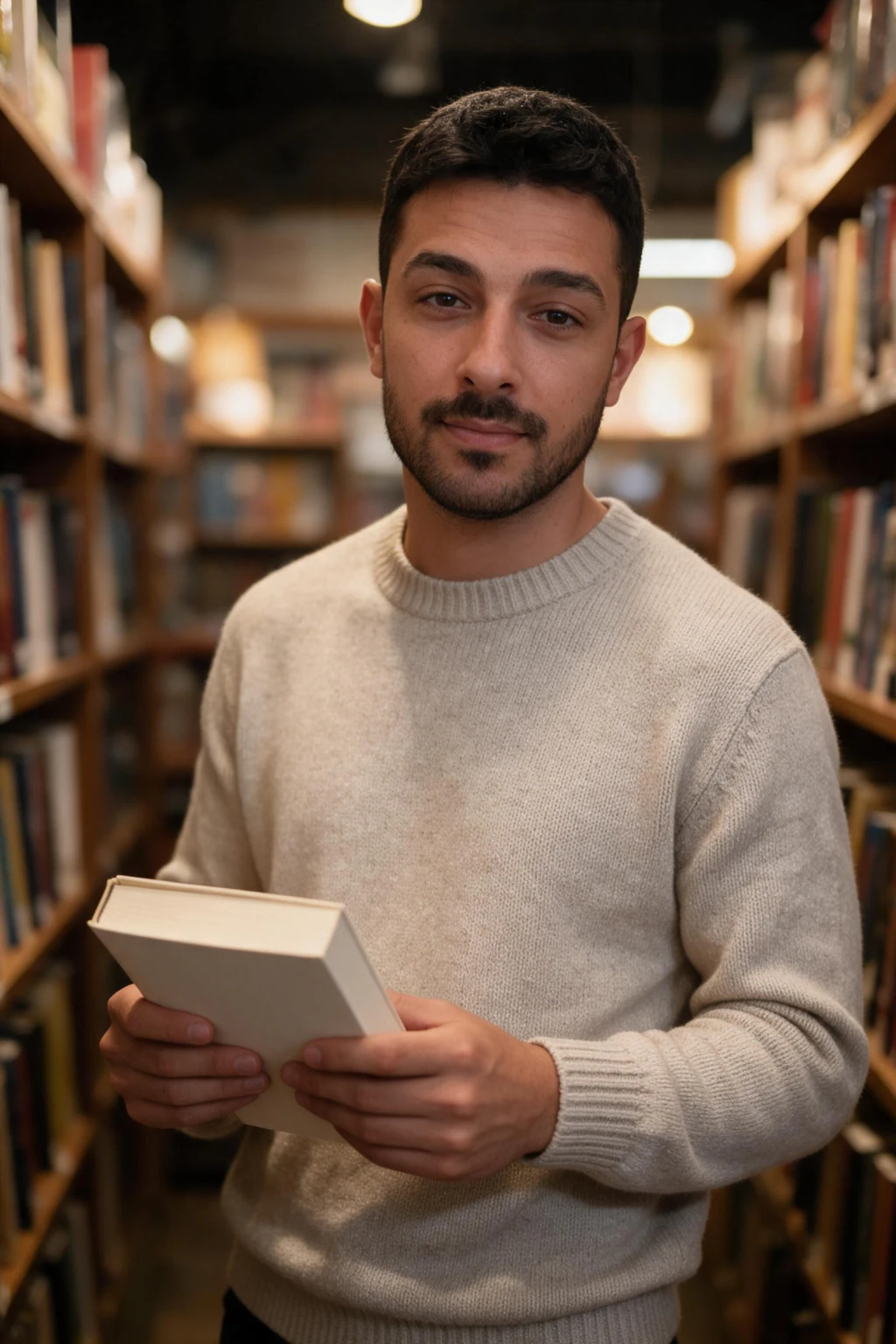
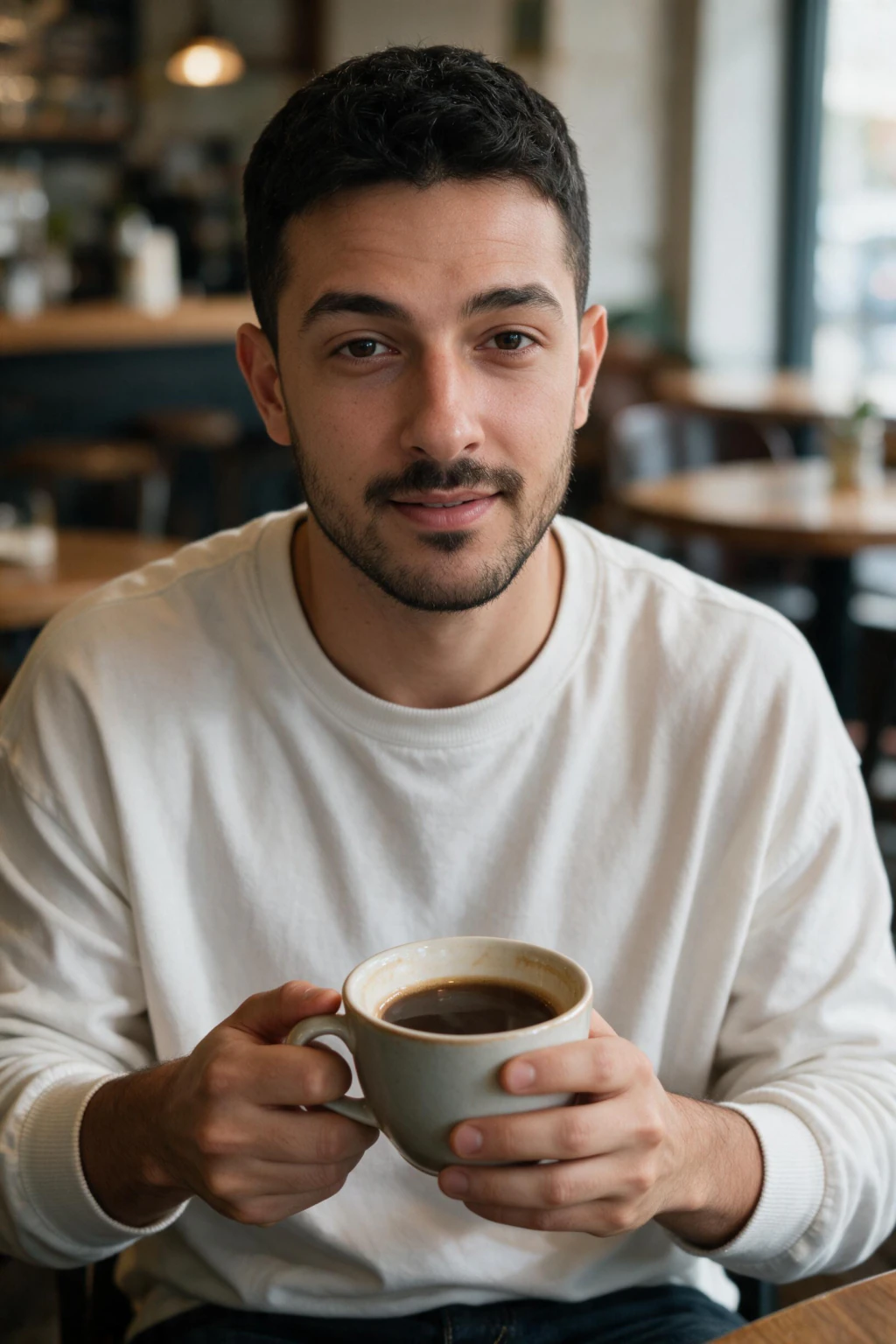
The 5 reasons AI personal photos look fake
Every other guide about making AI photos look realistic is written for Midjourney and text-to-image prompt tools. This guide is specifically for selfie-trained generators, where you upload one selfie and the AI generates photos of you. Different tool, different causes, different fixes.
Plastic Skin
AI models trained on retouched photography learn to smooth skin by default. The result is skin without pores, texture, or natural variation, it looks like a wax figure or a heavily filtered selfie.
Fix: use a platform tuned for photorealism and check output at full size for visible skin texture before selecting.
Wrong Lighting
When lighting is too even or too perfect, no shadows, no variation, it looks like a render, not a photograph. Real photographs always have imperfect light.
Fix: choose natural or lifestyle lighting styles over dramatic studio setups.
Face Doesn't Look Like You
This happens when the AI has too little input to work from, or inputs were low-quality. The model fills in the gaps by averaging toward a generic attractive face instead of preserving yours.
Fix: upload one well-lit selfie. More quality input = better likeness.
Background Doesn't Fit
Backgrounds that are too blurry, too sharp, or obviously inconsistent with the subject's lighting immediately break the illusion of a real photograph.
Fix: before keeping a result, check that background lighting matches the subject.
Arm's-Length Lens Distortion
Phone front cameras are ultra-wide-angle. At arm's length, they make your nose appear larger and ears smaller than in real life. If your selfie has this distortion, your AI photos will too.
Fix: take your selfie on the rear camera using a self-timer, or ask someone to take it, rather than at arm's length.
Fix 1, Start with better input photos
Realism starts before you generate. The AI can only work with what you give it.
Use natural light, soft window light from the side, or shade outdoors. Avoid harsh overhead light and dark rooms. Don't upload a beauty-filtered selfie, over-filtering teaches the AI that your skin is smoother than it is, which backfires in the output. Take your selfie front-facing on the rear camera, not an arm's-length front-camera shot, so the AI learns your true proportions.
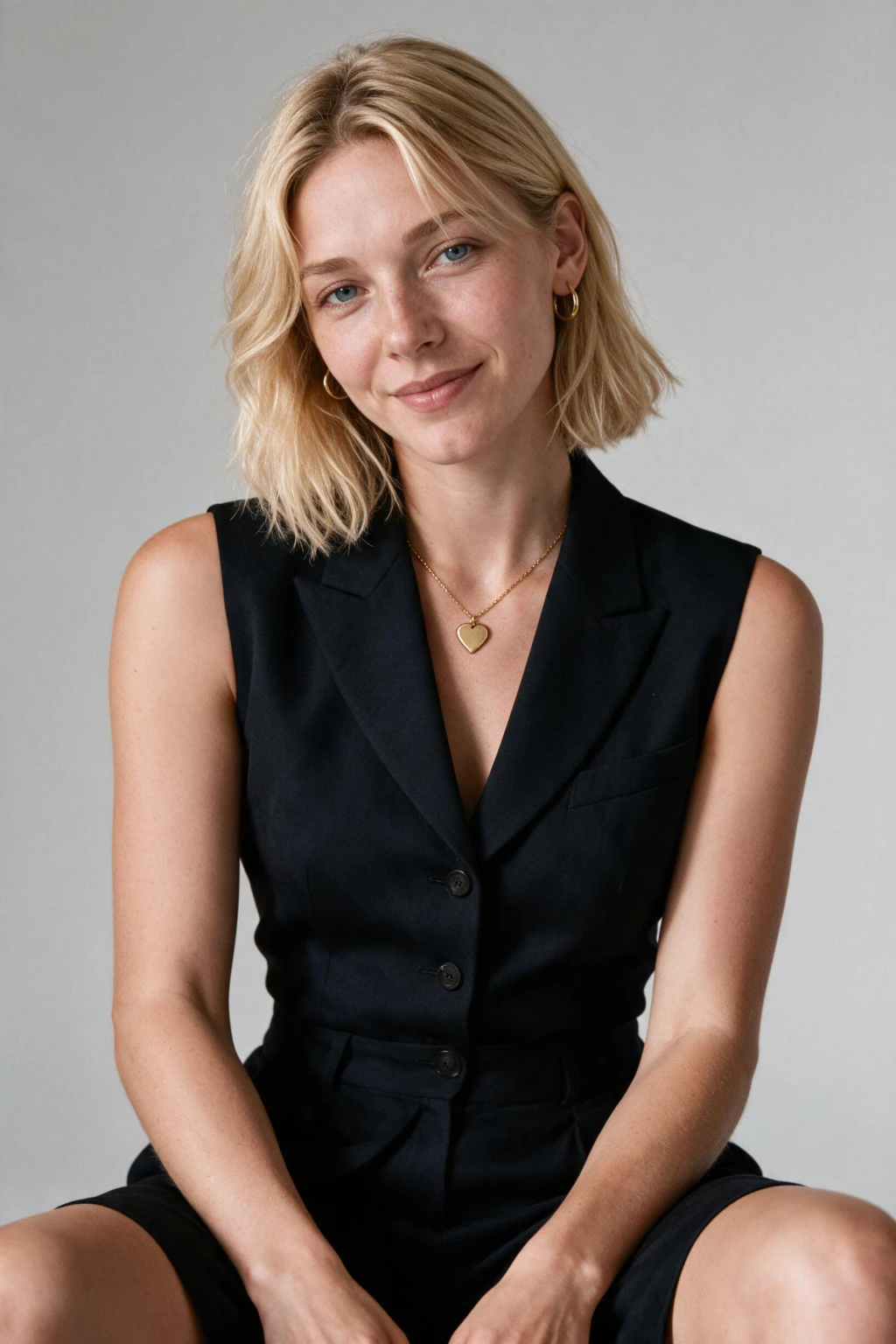
Upload one clear selfie shot in soft, even light. Input quality is the single most common root cause when AI photos don't look like the person.
Fix 2, Choose natural style settings
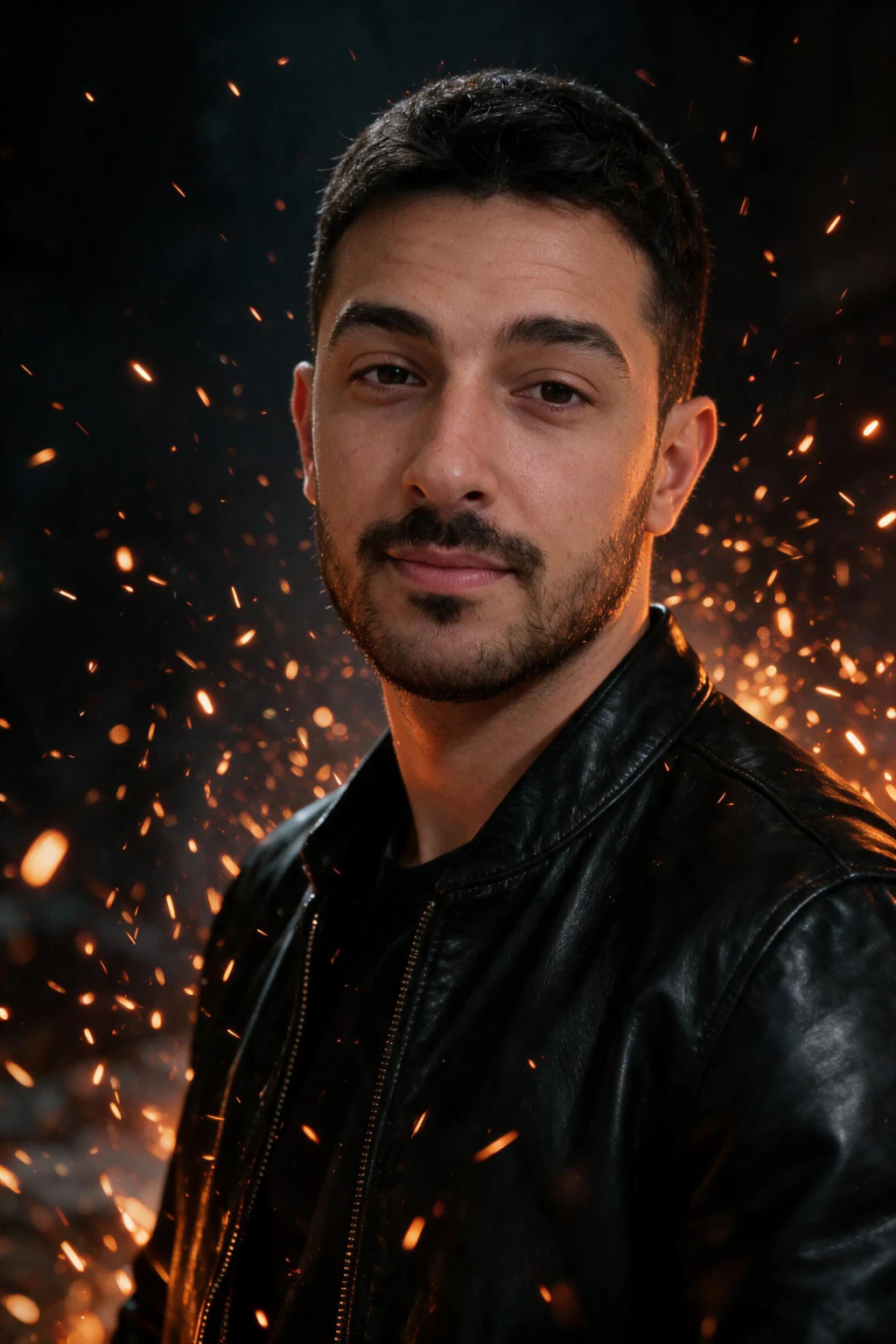
When you select a photo style, choose natural over dramatic. Natural or soft window light over harsh studio spotlight. Lifestyle and outdoor settings over studio-white backgrounds, unless you specifically need a formal headshot. Casual professional or business casual over formal suits, unless that actually reflects your look.
The more the style matches how you actually appear in real life, the more natural the result looks. The closer your style selection is to your everyday reality, the more believable the output.
Fix 3, Review and filter your results
When your batch comes back, don't use the first photo you see. Review every result against four checks.
Skin check: does the skin have texture? Visible pores, subtle variation in tone, minor natural imperfections? If it looks airbrushed or waxy, skip it. Face check: does this actually look like you? If the eye shape, jaw, or proportions feel off, it's the wrong one. Lighting check: does the light look like it's coming from a real source? Are there natural shadows, or does it feel flat and artificial? Background check: does the background match the lighting on the subject?
Save only the ones that pass all four checks. Expect to discard a meaningful share of any batch. Judge the set by its best few frames, not its average.
The mix strategy, the most underrated realism hack
Here's something no other guide covers: the most effective way to make your AI photos look real is to mix them with 1 to 2 genuine photos on the same profile.
When viewers see AI lifestyle photos alongside a real candid selfie, the AI photos read as professional photography, not AI. The real photos create an authenticity anchor. The AI photos look like you had a photographer shoot you in an interesting location. This works on LinkedIn, Instagram, and dating apps alike.
The ratio that works: for a 6-photo dating profile, use 4 AI lifestyle shots and 2 real candids. For LinkedIn, one clean AI professional headshot alongside your genuine work photos. For Instagram, mix 1 AI photo for every 2 to 3 real posts. Enhancement, not replacement, that's the strategy.
Why the platform matters for realistic results
Not all AI photo generators are built the same way. Some optimise for attractiveness over accuracy, they make you look like a better-lit, smoother-skinned version of someone else. Others optimise for identity preservation, your actual face, your actual features, just in a new setting.
For results that look like real photos of you, choose a tool that prioritises identity preservation. MakeAiPhotos is built for photorealism over aesthetic idealisation. The output should look like a real photograph of you, not a polished AI model who happens to share your general features. See the professional headshots from selfies walkthrough for the corporate-grade version of this workflow. The realistic AI photo generator page shows exactly what the tool produces from one selfie.
What a 'realistic' input selfie actually looks like
The single biggest variable in realistic AI photo output is the quality of your input selfie. Most people interpret 'good selfie' as 'flattering selfie'. For an AI generator, those are different things. The model needs information, not attractiveness.
A realistic input selfie meets six specific criteria. Face fills roughly 60 percent of the frame. Both eyes are open, in focus, and have matching catchlights from the same light source. No sunglasses, no hats with deep brims, no hair covering one eye. Soft directional light from a window or open shade, never overhead office lights or direct sun. Camera held about 1 metre away on a self-timer or by another person, not at arm's length. Beauty mode, skin smoothing, and any portrait-enhancement filter turned off in the camera app before you press the shutter.
Get your one selfie right. Use a clear, front-facing angle at eye level, a natural expression, and soft, even light from a window. A single well-lit, unfiltered selfie is all the model needs to learn your real features.
Your one selfie should be a clear, front-facing shot taken on the rear camera in soft light, showing your face and a bit of your shoulders. That gives the model an accurate read on your proportions. Avoid group photos, strong filters, and any shot where you are not the clearly dominant subject.
AI photo realism versus a professional photographer
A common follow-up question: can AI photos actually compete with a professional photographer on realism? In 2026, the honest answer is yes for most use cases, no for a specific minority.
A skilled professional photographer with a $3000 camera and studio lights produces objectively higher realism per frame than any current AI generator. A photographer also captures genuine micro-expression, true skin micro-texture under controlled light, and authentic depth-of-field falloff from physical optics. That ceiling exists. The trade-off is cost (typically $200 to $500 per session, plus editing time), scheduling (often 1 to 3 weeks lead time), wardrobe limits (one outfit per session in most packages), and location limits (one studio, one street, one park per booking).
A modern selfie-trained AI generator like MakeAiPhotos produces realism that most viewers cannot distinguish from a phone-captured professional headshot at thumbnail size, which is the only size that matters on LinkedIn, dating apps, Slack, and Substack. The trade-off goes the other direction: about 12 finished frames per $9.99 pack, multiple settings and wardrobes from one upload, about 2 minutes per photo, and a fraction of the cost. For corporate photography, magazine editorial, or campaign work, hire the photographer. For LinkedIn, dating profiles, Instagram lifestyle, podcast bios, and Slack avatars, the realism gap closes to near zero. The longer comparison lives in our AI headshots vs professional photographer guide.
The realism question is also the wrong question for personal-brand content at volume. A photographer is a one-shot solution. A selfie-trained AI generator is a 50-to-200-photo library you build once and reuse for six to twelve months across every platform.
Common mistakes that make AI photos look fake
Eight specific mistakes account for almost every fake-looking AI photo result. Run through this list before regenerating and most realism complaints resolve themselves.
Mistake one: uploading filtered selfies. Beauty mode, skin smoothing, and any Instagram-style portrait filter teach the model that your skin has no pores. The output then looks like a wax figure. Turn off every filter in your camera settings, then take a fresh selfie.
Mistake two: an arm's-length selfie. Front-camera ultra-wide lenses distort your nose larger and your ears smaller at arm's length. The AI learns the distorted version of your face and renders that distortion into every output. Take your selfie on the rear camera instead to give the model accurate proportions.
Mistake three: choosing the most dramatic style on the first generation. Editorial black-and-white, cinematic spotlight, and high-contrast studio packs amplify every small AI error. Start with a natural lifestyle or business casual pack to confirm likeness, then branch into creative styles.
Mistake four: keeping the first output. The first photo you generate is rarely the best. Run two or three different looks from the same selfie, then rank them before posting.
Mistake five: judging at full screen instead of thumbnail size. LinkedIn shows your photo as a 96-pixel circle. Dating apps show 200-pixel thumbnails. Shrink your top picks to that size before deciding. Photos that fail at thumbnail size lose to photos that hold up small, regardless of fullscreen quality.
Mistake six: backgrounds that do not match the subject lighting. If the background has cool blue afternoon shade and the face has warm yellow studio light, the output reads as a composite. Filter for outputs where light direction and colour temperature visibly match across subject and background.
Mistake seven: posting an all-AI profile. An all-AI feed triggers viewer suspicion even when each individual photo would have passed in isolation. Always include one real recent selfie in any profile spread to anchor authenticity.
Mistake eight: switching tools instead of fixing inputs. Most people regenerate three or four times before considering that the problem might be the photo they uploaded. If three photos in a row do not look like you, the answer is in your selfie, not in the next generator.
How to make AI generated images look realistic in 2026 (the workflow)
Putting the fixes in order gives a repeatable workflow. Run it once and the realism question resolves in under an hour from clean slate to final downloads.
Step 1: Capture your input. Take one clear, front-facing selfie on the rear camera, beauty mode off, soft natural light, with a natural expression. Spend 5 minutes.
Step 2: Upload and choose a natural pack. Open MakeAiPhotos, upload the batch, and pick a lifestyle or business casual pack rather than a dramatic editorial or studio one. Spend 2 minutes.
Step 3: Generate. The generator handles prompt structure internally per pack. No prompt writing required. Allow about 2 minutes per finished photo.
Step 4: Review at thumbnail size. Shrink each output to 96 to 200 pixels and rank by likeness. Spend 5 minutes.
Step 5: Filter with the 4-signal check. Skin texture present, eye catchlights matched, lighting consistent, background coherent. Keep only the photos that pass all four. Spend 5 minutes.
Step 6: Build the profile mix. For LinkedIn: 1 AI headshot plus your real work photos. For dating apps: 4 AI lifestyle plus one real selfie. For Instagram: 1 AI for every 2 to 3 real posts. The mix is the realism amplifier no single AI photo can produce on its own.
Cartoon vs real: side-by-side prompt comparison
If you do use a text-to-image tool (Midjourney, SDXL, Flux) for non-portrait realism, the prompt itself decides whether the output reads as a 3D render or a photograph. The two prompts below describe the same subject. One produces cartoon output, the other photographic output. The difference is physical specification, not adjective stacking.
Cartoon-prompt anti-pattern (what NOT to write):
`beautiful woman, stunning eyes, ultra realistic, 8k, masterpiece, highly detailed, perfect skin, cinematic lighting, hyperrealistic, trending on artstation`
Why this fails in 2026: 'ultra realistic', '8k', 'masterpiece', 'hyperrealistic', and 'trending on artstation' are all trained on stylised CGI and concept art. The model treats them as render cues. 'Perfect skin' triggers waxy smoothing. 'Stunning eyes' triggers oversaturated colour. The output looks like a video game character.
Photographic prompt (what to write instead):
`portrait of a 32 year old woman, Canon EOS R5, 85mm f/1.8 lens, shot at f/2.0, natural window light from camera left, soft shadow on right cheek, visible skin pores and freckles, neutral expression, looking slightly off camera, indoor cafe background slightly out of focus, ISO 200, shutter 1/200, no retouching, unedited RAW file`
Why this works: every token specifies a physical fact a real camera would record. The model has trained on millions of EXIF-tagged photos, so naming a camera body, lens, aperture, ISO, and shutter speed pulls weight toward the photographic side of latent space. 'Visible skin pores and freckles' is the single most effective anti-plastic-skin token in 2026 models. 'Unedited RAW file' blocks the over-processed glamour bias.
Rule of thumb: swap adjectives for physical specifications (lens mm, f-stop, light direction, ISO). Adjectives stack as noise. Specifications stack as signal. The table below lists the six swaps that do the most work.
| Cartoon cue (cut it) | Photographic replacement |
|---|---|
| ultra realistic, 8K | Canon EOS R5, 85mm f/1.8 |
| masterpiece, trending on artstation | unedited RAW file, ISO 200 |
| perfect skin | visible skin pores, freckles |
| cinematic lighting | window light camera left, shadow on right cheek |
| stunning eyes | single rectangular catchlight in both eyes |
| hyperrealistic | shutter 1/200, shot at f/2.0 |
Negative prompt template for realistic AI photos
A negative prompt tells the model what to exclude. In 2026 image models (SDXL, Flux, SD3.5, and most ComfyUI workflows), the negative prompt is the single fastest realism upgrade after the camera-specification trick above. Most cartoon AI output is caused by tokens the model defaults to, not by anything you wrote. The negative prompt removes those defaults.
Drop this exact block into the negative prompt field for portrait realism:
`smooth skin, airbrushed, plastic skin, waxy skin, cgi, 3d render, octane render, illustration, anime, cartoon, painting, drawing, sketch, watercolor, oversaturated, hdr, cinematic glow, glamour shot, retouched, instagram filter, beauty filter, deformed fingers, extra fingers, fused fingers, mutated hand, six fingers, asymmetric eyes, crossed eyes, lazy eye, plastic teeth, fake teeth, oversaturated lips, doll face, mannequin, wax figure, low contrast skin, even lighting, ring light reflection`
Token-by-token reasoning: the first group (smooth, airbrushed, plastic, waxy) blocks the retouching bias from training data. The second group (cgi, render, illustration, anime, cartoon) blocks 3D and stylised modes that 'ultra realistic' accidentally triggers. The third group (hdr, cinematic glow, glamour shot, instagram filter) blocks the over-processed glamour bias. The fourth group (deformed fingers, six fingers, fused fingers) targets the single most common physical tell. The fifth group (asymmetric eyes, lazy eye, doll face, mannequin, wax figure) targets the second most common physical tell. The last token (ring light reflection) prevents the giveaway circular catchlight that ring lights leave in eyes, a signature of obvious AI portraits.
Selfie-trained generators like MakeAiPhotos handle the equivalent of this internally per pack. You do not write a negative prompt on this site, the model is pre-tuned with the equivalent exclusions. The block above is for users running their own Stable Diffusion, Flux, or ComfyUI pipelines.
Why do AI photos look fake? The 11 tells and the fix for each
Every fake-looking AI photo trips at least one of eleven specific visual tells. Run an output through this checklist and either fix the tell or discard the frame.
Tell 1: skin without pores. The face looks like polished plastic or buffed wax. Cause: over-smoothing bias. Fix: prompt for 'visible skin pores, freckles, natural skin texture, no retouching' or use a selfie-trained generator with photorealism tuning. Reject any output where you cannot see pore-level texture on the nose and forehead at full resolution.
Tell 2: wrong number of fingers. Six fingers, four fingers, fused fingers, or a thumb in the wrong spot. Cause: hand training data is undersampled. Fix: add 'deformed fingers, extra fingers, fused fingers, six fingers, mutated hand' to negative prompt. Crop hands out, regenerate with ADetailer or Inpaint Anything on the hand region, or simply discard the frame. Hand defects are the single most viral AI tell on social media.
Tell 3: ring-light circle in eyes. A perfect doughnut catchlight in both pupils. Cause: stock photo training data shot with ring lights. Fix: prompt for 'soft window light from camera left, single rectangular catchlight in eyes, no ring light' and add 'ring light reflection' to negative prompt.
Tell 4: asymmetric or unfocused eyes. One pupil looks larger, one points slightly off, or both have different colour saturation. Cause: low-rank eye reconstruction. Fix: 'symmetric eyes, both eyes in focus, matching catchlights in both pupils' positive prompt, and 'asymmetric eyes, crossed eyes, lazy eye' negative prompt. Re-run with face-detail upscalers if available.
Tell 5: plastic, glossy teeth. Teeth look like a single shiny piece rather than individual teeth. Cause: dental training data is bad. Fix: prefer closed-mouth or slight-smile prompts over full toothy grins for AI portraits, or accept teeth will need inpaint correction.
Tell 6: background that does not share light direction with the face. The subject is lit from the left but the building behind is lit from the right. Cause: latent space blending two scenes. Fix: discard. No prompt tweak reliably fixes mismatched light direction. Pick the next frame.
Tell 7: jewellery, watches, or logos that morph into illegible shapes. The watch face has no numbers, the necklace pendant is a smudge. Cause: small-detail rendering failure. Fix: prompt for 'no jewellery, no watch, plain neck' for portraits, or inpaint the small details with a separate pass.
Tell 8: hair edges that blend into the background. Strands fade out where they should be sharp. Cause: edge segmentation failure in dense scenes. Fix: prompt for 'sharp hair edge against background' and avoid backgrounds with similar tone to hair colour.
Tell 9: text in the scene that is gibberish. Signs, book covers, or t-shirts with letter-shaped scribbles. Cause: text is hard for diffusion models. Fix: prompt 'no text, no signs, no logos' or accept that any text needs to be inpainted with a text-specialised model.
Tell 10: ears with a fold missing, or two different ear shapes on one head. Cause: ear cartilage is small, intricate detail the render simplifies. Fix: pick the frame where both ears show the outer rim and the inner ridge, and regenerate otherwise.
Tell 11: a smile that stops at the mouth. The lips smile but the eyes stay flat, with no crinkle at the outer corners. Cause: the expression is rebuilt from a posed or neutral input. Fix: upload a selfie where your real smile reaches your eyes; the render copies the expression it is given.
If an output trips two or more tells, regenerate. If it trips one tell in a non-focal area (background watch, cropped hand), keep it. Realism on the focal subject matters more than perfection across the frame.
| Tell | Cause | One-line fix |
|---|---|---|
| Skin without pores | Over-smoothing bias | Prompt for visible pores and natural skin texture; reject buffed-wax frames |
| Wrong number of fingers | Hand data undersampled | Negative-prompt deformed/extra/fused fingers, or crop and regenerate the hand |
| Ring-light circle in eyes | Ring-light training data | Prompt soft window light with a single rectangular catchlight; negative-prompt ring light |
| Asymmetric or unfocused eyes | Low-rank eye reconstruction | Prompt symmetric, in-focus eyes with matching catchlights; rerun a face-detail upscaler |
| Plastic, glossy teeth | Bad dental training data | Prefer a closed or slight smile; inpaint teeth if needed |
| Background light not matching face | Latent blending of two scenes | Discard the frame; no prompt reliably fixes mismatched light direction |
| Morphing jewellery, watches, logos | Small-detail rendering failure | Prompt no jewellery or watch for portraits, or inpaint details in a separate pass |
| Hair edges blending into background | Edge segmentation failure | Prompt a sharp hair edge; avoid backgrounds that match hair tone |
| Gibberish text in the scene | Diffusion struggles with text | Prompt no text, no signs, no logos, or inpaint with a text-specialised model |
| Ears: one fold missing or two different ear shapes | Ear cartilage simplified as small detail | Pick the frame where both ears show the outer rim and inner ridge; regenerate otherwise |
| Smile without eye crinkle | Expression rebuilt from a posed input | Upload a selfie where your real smile reaches your eyes; the render copies it |
Why hands and fingers ruin AI photos (and the fix)
Hands are the single most common reason an otherwise-realistic AI portrait gets flagged as AI on social media. The reason is structural: diffusion models train on millions of full-body and headshot photos where hands are partial, blurred, cropped, or holding objects. The model never gets clean reference data for finger count, finger length, or finger joint positioning.
Three fixes ranked by effectiveness. Fix one (highest impact): crop or compose hands out of frame. Headshots from the chest up bypass the entire problem. If the use case is LinkedIn, dating app primary photo, or podcast bio, hands rarely belong in frame anyway. Fix two: have the hands occupied. Holding a coffee cup, a phone, or a steering wheel hides 60 to 80 percent of finger surface and forces the model to render a simpler shape. Fix three (last resort): inpaint the hand region with ADetailer, Inpaint Anything, or a dedicated hand-fix LoRA. Manual inpaint adds 5 to 10 minutes per frame and is only worth it for hero shots.
What does NOT work: prompting 'perfect hands, five fingers, anatomically correct hands'. Positive prompts on hands frequently make the problem worse by pulling more attention to the hand region without giving the model accurate geometry. Negative prompts ('deformed fingers, extra fingers, fused fingers') help, but never solve it fully on the first pass.
Selfie-trained generators like MakeAiPhotos default to chest-up and shoulder-up framing on portrait packs specifically because the hand problem has no clean prompt-side fix. Pack selection beats prompt engineering for the hand issue.
The realistic AI photo prompt formula (copy-paste template)
If you write your own prompts in Midjourney, SDXL, Flux, or ComfyUI, a single repeatable formula beats every adjective stack. The formula has six slots, each one a physical fact a real camera would record. Fill all six, drop the result into your tool, and realism jumps measurably on the first generation.
The formula: SUBJECT plus CAMERA plus LENS plus LIGHT plus SKIN plus RAW-TAG.
Slot 1 (subject): age, gender, expression, framing. Example: 'portrait of a 35 year old man, neutral expression, shoulders-up framing'.
Slot 2 (camera): a specific real camera body. Example: 'Canon EOS R5' or 'Sony A7 IV' or 'Fujifilm X-T5'. Naming a real body pulls latent weight toward EXIF-tagged photographic training data.
Slot 3 (lens): focal length and aperture. Example: '85mm f/1.8 lens shot at f/2.0' for portraits, '35mm f/1.4 at f/2.8' for environmental shots. Never omit the aperture.
Slot 4 (light): direction and source. Example: 'soft natural window light from camera left, soft shadow on right cheek'. Specify direction, not mood.
Slot 5 (skin): the single highest-impact realism token. Example: 'visible skin pores, freckles across nose bridge, natural skin texture, no retouching'. This one slot does more work than the other five combined for blocking plastic skin.
Slot 6 (raw-tag): the EXIF-style closer. Example: 'ISO 200, shutter 1/200, unedited RAW file'. Locks the model into photographic mode rather than render mode.
Full filled template: `portrait of a 35 year old man, neutral expression, shoulders-up framing, Canon EOS R5, 85mm f/1.8 lens shot at f/2.0, soft natural window light from camera left, soft shadow on right cheek, visible skin pores, freckles across nose bridge, natural skin texture, no retouching, indoor cafe background slightly out of focus, ISO 200, shutter 1/200, unedited RAW file`
Selfie-trained generators bypass this formula entirely. You upload one selfie and the platform handles prompt structure internally. The formula above is for text-to-image users only. If you want your specific face reproduced, no text prompt can do that, see the how to make AI photos of yourself walkthrough for the selfie-trained workflow instead.
Copy-paste realistic photo prompt templates (5 use cases)
Each template below fills all six slots of the formula above. Copy one, swap the bracketed details for your own, and generate. Every string ends on an EXIF-style closer, which is what keeps the model in photographic mode.
1. LinkedIn headshot:
`portrait of a [age] year old [man/woman], neutral confident expression, shoulders-up framing, Canon EOS R5, 85mm f/1.8 lens shot at f/2.0, office window light from camera left, soft shadow on right cheek, visible skin pores and fine lines around the eyes, navy blazer, quiet office background out of focus, ISO 200, shutter 1/200, no retouching, unedited RAW file`
2. Dating-profile candid:
`candid photo of a [age] year old [man/woman], mid-laugh looking off camera, waist-up framing, Sony A7 IV, 35mm f/1.4 lens shot at f/2.8, golden hour light in a city park, flyaway hairs catching the sun, visible skin texture and slight tone variation, ISO 400, shutter 1/500, no retouching, unedited RAW file`
3. Travel street shot:
`street photo of a [age] year old [man/woman], walking and glancing back, full-body framing, Fujifilm X-T5, 28mm f/2.8 lens, flat overcast daylight, slightly tilted horizon, wet cobblestone reflections, visible skin pores, weathered denim jacket, ISO 320, shutter 1/250, unedited RAW file`
4. Cafe environmental portrait:
`environmental portrait of a [age] year old [man/woman], seated at a wooden table, chest-up framing, Nikon Z6 III, 50mm f/1.8 lens shot at f/2.2, warm interior light from camera right, shadow falling across the left jaw, visible skin pores and stubble detail, background espresso machine out of focus, ISO 800, shutter 1/125, unedited RAW file`
5. Outdoor business casual:
`portrait of a [age] year old [man/woman], relaxed half-smile, chest-up framing, Canon EOS R6, 85mm f/1.8 lens shot at f/2.5, open shade on a building's north side, single rectangular catchlight in both eyes, visible skin pores, rolled shirt sleeves, blurred brick wall behind, ISO 250, shutter 1/320, no retouching, unedited RAW file`
Selfie-trained generators skip all of this. You upload one selfie, pick a pack, and the platform handles the six slots internally, so there is no prompt to write. If you do write your own, the deep prompt library lives in our best AI prompt for realistic photos guide.
The optical flaws that make an AI image read as a photograph
The reverse of this section, how other people detect the images you make, is covered in how to tell if an image is AI generated.
Every generator is trained to produce a clean image. Real cameras do not. The fastest way to move an output from render toward photograph is to ask for the specific ways a lens fails, because those failures are what your eye has spent a lifetime reading as evidence that a camera was there.
Film grain is the first one. Real sensors add noise, heavier in shadow and at higher ISO. An image with perfectly smooth mid-tones has no photographic origin story. Ask for fine grain at ISO 400 rather than the word grainy, which pushes toward a stylised filter instead.
Chromatic aberration is the second. Fast lenses fringe slightly purple or green where a bright edge meets a dark one, along a jawline against a window, or through backlit hair. Generators suppress it because it looks like a defect. It is a defect, and its total absence is itself a tell.
Vignetting is the third. Light falls off toward the corners of a real frame, gently, more so wide open. A frame lit identically corner to corner reads as a composite. Ask for a gentle vignette, not a heavy one, which tips into Instagram-preset territory.
Focus is the fourth and the one most people never think to ask for. Real portraits miss slightly: focus lands on the near eye and the far eye softens, or catches an eyelash instead of the iris. Perfect edge-to-edge sharpness on a face is not what an 85mm at f/1.4 does.
The fifth is exposure. Real photographs blow a highlight somewhere, a window, a strip of skin, the edge of a shirt. A histogram that never touches either end is a render. Mild over-exposure with one blown highlight is a phrase worth keeping in your prompt.
The mirror image of all this is the vocabulary to remove. Perfect, flawless, pristine, immaculate and ultra-detailed all instruct the model toward the clean look you are trying to escape. Strip them and add the flaws back deliberately.
How to fix plastic skin in AI photos (the highest-impact single fix)
Plastic skin is the most reported AI photo problem in 2026 and also the most fixable. The root cause is training data: image models trained on retouched stock photography, beauty filters, and over-processed Instagram portraits learn that smooth skin is the default. Fix the input signal and the output recovers in one pass.
For text-to-image tools, the exact tokens that fix plastic skin in 2026 models (SDXL, Flux, SD3.5):
Positive prompt additions: `visible skin pores, natural skin texture, freckles, slight skin tone variation, fine wrinkles around eyes, unretouched skin, photographic skin detail, no skin smoothing`.
Negative prompt additions: `smooth skin, airbrushed, plastic skin, waxy skin, doll skin, porcelain skin, beauty filter, instagram filter, retouched, skin smoothing, oversaturated skin, glamour shot`.
Sampler tweak: lower CFG scale from the default 7 down to 4 or 5. High CFG amplifies whatever bias the base model carries, and the base bias is smooth skin. Lower CFG lets natural skin texture survive.
For selfie-trained generators (MakeAiPhotos and similar), the fix lives in the inputs, not the prompt. Turn off beauty mode, skin smoothing, and any portrait-enhancement filter in your camera app before taking selfies. Upload one selfie that shows real pores under soft window light. The render reads your skin straight from that file, so if your input is smoothed, every output is smoothed.
Verification at output: zoom each result to 100 percent and inspect the nose bridge, forehead, and cheek. If you cannot see pore-level texture, the frame failed. Discard and regenerate. Pore visibility is the single fastest fail-check for AI photo realism in 2026, faster than checking hands, eyes, or lighting.
Frequently Asked Questions
- Why do my AI photos look like a different person?
- The AI didn't have a good enough input photo to learn your features. Upload one clear selfie in natural light with no heavy filters. Crucially: take it on the rear camera, not at arm's length, arm's-length front-camera shots have wide-angle distortion that skews facial proportions in the output.
- Why does the skin in my AI photos look plastic or fake?
- Over-smoothed skin is the most common AI photo problem. It happens because many models are trained on retouched photography and default to over-smoothing. A quality generator like MakeAiPhotos is tuned for natural skin texture, visible pores, natural tone variation, rather than airbrushed perfection.
- What's the best lighting for your AI input selfie?
- Natural window light from the side, or outdoor shade. Avoid harsh direct sun, overhead lighting, and dark rooms. Good input lighting means the AI learns your features with accurate shadow and texture, which directly improves how realistic the output looks.
- How do I make my AI photos not look AI-generated?
- Four things matter: upload one clear, naturally lit selfie taken on the rear camera; pick natural style settings; filter results against a skin, face, lighting, and background check; and mix your best AI photos with one or two real photos on the same profile. The mix is what makes AI photos pass as professional photography.
- Can AI-generated photos pass as real photographs?
- Yes, when done well. High-quality AI generators produce results most people cannot distinguish from professional photography. The variables are input quality, platform choice, and filtering. Poor inputs produce fake-looking results regardless of the tool, good inputs combined with careful selection pass easily.
- How do I make an AI photo look real for LinkedIn specifically?
- To make an AI photo look real for LinkedIn, choose a business casual or corporate pack over an editorial one, keep the background quiet (office or neutral studio), and run the thumbnail test: shrink the photo to 120 pixels and confirm it still reads as you. Our AI LinkedIn headshot generator is tuned for this specific output.
- What is the single fastest way to make an AI photo look more real?
- The fastest single fix is to take one new selfie on the rear camera (not at arm's length) with beauty mode off, in soft window light, then generate again from it. Arm's-length lens distortion is the most common cause of unrealistic output, and using the rear camera corrects proportion errors no style change can recover from.
- How do you make AI generated images look realistic?
- To make AI generated images look realistic, fix the inputs and the output filter, not the prompt. For selfie-trained generators: upload one unfiltered selfie taken on the rear camera, choose a natural lifestyle pack, and filter outputs against four signals (skin texture, matched eye catchlights, consistent lighting, coherent background). For text-to-image tools, specify a real camera and lens, a single directional light source, and a negative prompt that blocks smooth skin and plastic.
- How do you make AI look real?
- Make AI look real by giving the model accurate physical information rather than asking it for 'realism'. With selfie-trained generators that means undistorted selfies with natural skin texture and varied light. With prompt-driven tools that means a specified camera, lens, lighting direction, and a negative prompt excluding smoothed skin and oversaturation. Adjectives like 'ultra realistic' or '8K' add almost nothing in 2026 models compared to physical specifications.
- How do you make AI pictures look real?
- AI pictures look real when three conditions are met: skin shows visible pores and tone variation, lighting on the subject matches lighting in the background, and the face matches the real person at thumbnail size, not just fullscreen. Use a selfie-trained generator like MakeAiPhotos, upload one clean unfiltered selfie, choose a natural pack, and filter outputs against those three signals before posting.
- How do you make a realistic AI photo of yourself?
- To make a realistic AI photo of yourself, use a selfie-trained generator, not a text-to-image prompt tool. Text-to-image cannot reproduce your specific face. Upload one well-lit, unfiltered selfie taken on the rear camera, pick a natural lifestyle or business casual pack, generate the batch, and keep only outputs with visible skin texture and matched eye catchlights. The whole workflow takes about 2 minutes per photo on MakeAiPhotos.
- What is the best negative prompt for realistic AI photos?
- For SDXL, Flux, and SD3.5 portraits in 2026, the best negative prompt is: `smooth skin, airbrushed, plastic skin, waxy skin, cgi, 3d render, illustration, anime, cartoon, oversaturated, hdr, cinematic glow, glamour shot, retouched, instagram filter, deformed fingers, extra fingers, fused fingers, asymmetric eyes, ring light reflection, doll face, wax figure`. This block blocks the five most common cartoon biases (smooth skin, render mode, glamour processing, hand defects, and ring-light catchlights). Lower CFG scale to 4 or 5 alongside it.
- What is the best positive prompt for realistic AI photos?
- The best positive prompt structure for realistic AI photos uses physical camera specifications instead of adjectives. Template: `portrait of a [age] [gender], [camera body like Canon EOS R5], [lens like 85mm f/1.8] shot at f/2.0, soft natural window light from camera left, visible skin pores and freckles, natural skin texture, no retouching, ISO 200, shutter 1/200, unedited RAW file`. Naming a real camera body, a real focal length, and a real aperture pulls the model toward EXIF-tagged photographic training data. Adjectives like 'ultra realistic' or '8K' add almost no realism in 2026 models.
- How do I fix AI photo hands and fingers?
- The reliable fix is composition, not prompting. Crop hands out of frame entirely (chest-up or shoulders-up framing) or pose the subject holding an object (coffee cup, phone, steering wheel) so most of the hand is occluded. If hands must be in frame and visible, run an inpaint pass with ADetailer, Inpaint Anything, or a hand-fix LoRA on the hand region only. Positive prompts like 'perfect hands, five fingers' often make hands worse by pulling more attention to them without giving the model accurate geometry.
- How do you make AI generated images look real, not just realistic?
- Ask for the ways a camera fails. Fine grain at ISO 400, slight chromatic fringing where a bright edge meets a dark one, a gentle corner vignette, focus on the near eye with the far eye softening, and one blown highlight. Then delete every perfection word from the prompt: perfect, flawless, pristine, ultra-detailed. Those five flaws are what your eye reads as proof a lens was involved, and their complete absence is the single most common reason a technically good image still reads as generated.
- Why do AI images look fake?
- Three causes account for almost all of it: plastic skin with no visible pores, lighting on the face that disagrees with the background, and defects in hands or eyes. Image models trained on retouched photography smooth skin by default. The 11-tells checklist above names the fix for each one.