How do I make an AI photo more realistic? The 1-paragraph answer
To make an AI photo more realistic, change the input not the tool. Take one new selfie on the rear camera (not at arm's length) with beauty mode off in soft window light, upload that clear selfie, then pick a natural lifestyle pack instead of a dramatic editorial one. Beginner users see usable output jump from roughly 2 out of 20 to 12 out of 20 in the same batch when they apply this fix before regenerating.
This post is the beginner walkthrough with concrete pack names, before/after numbers, and the exact phone settings to change. If you want the broader pillar guide on how to make AI photos look more realistic, our full fix list for AI photo realism covers every cause in depth.
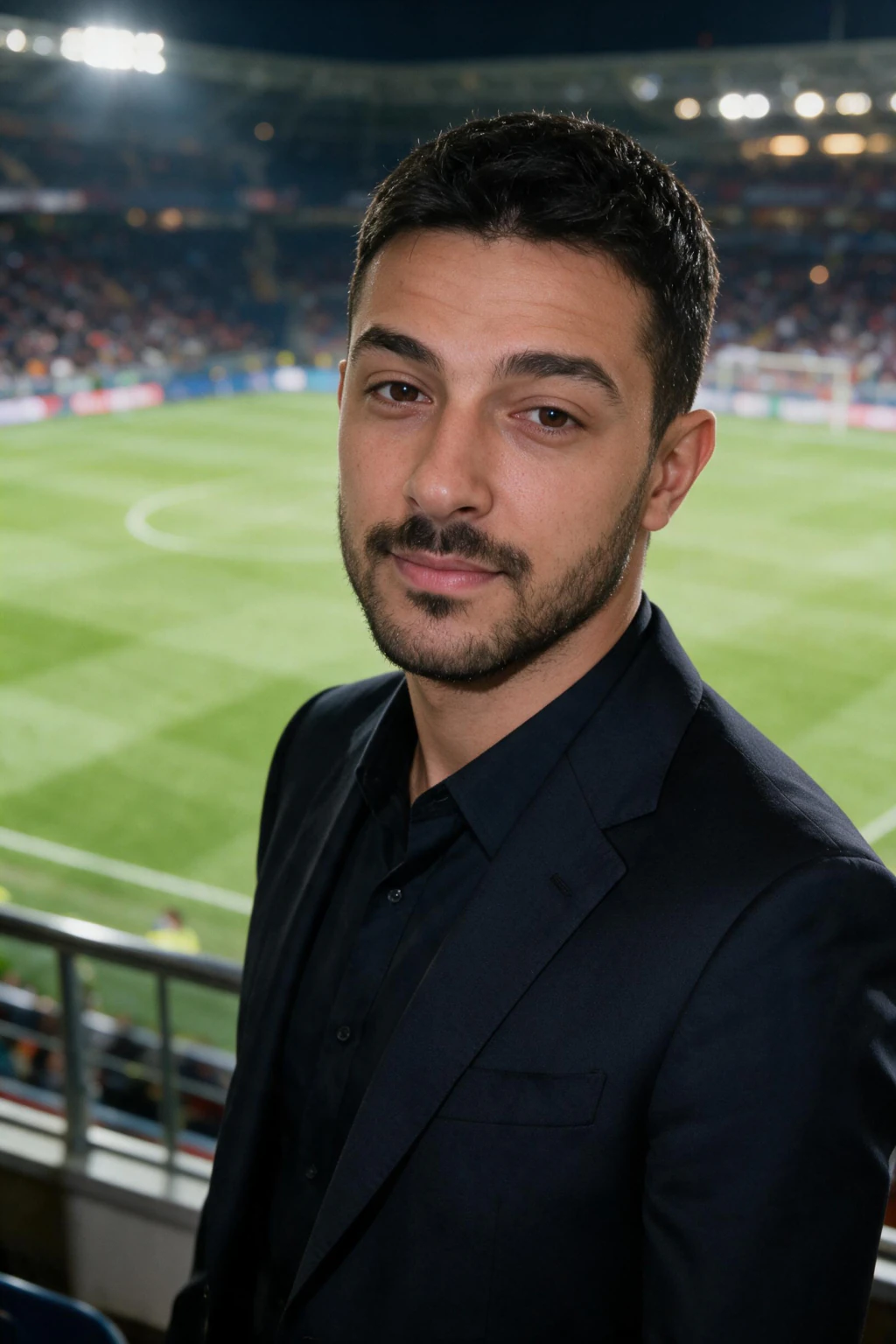
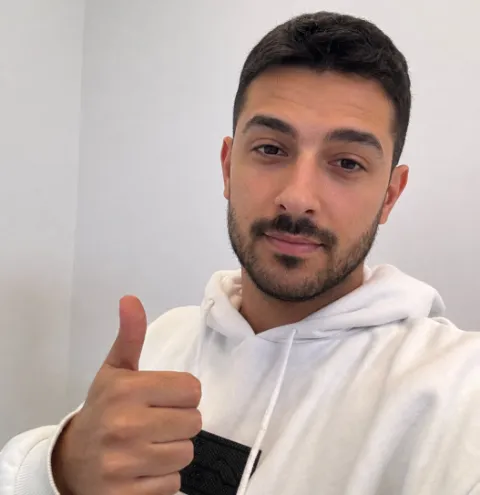
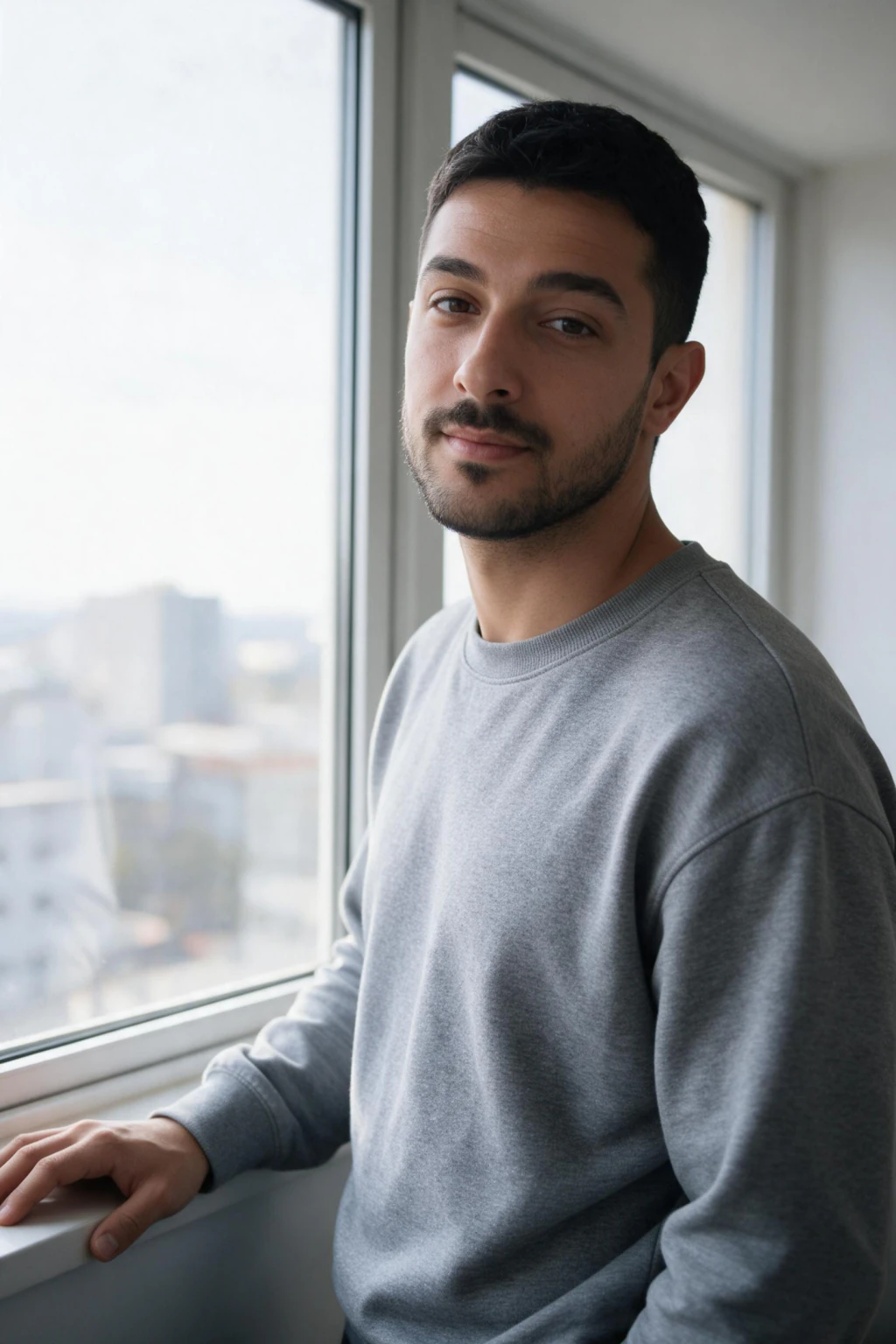
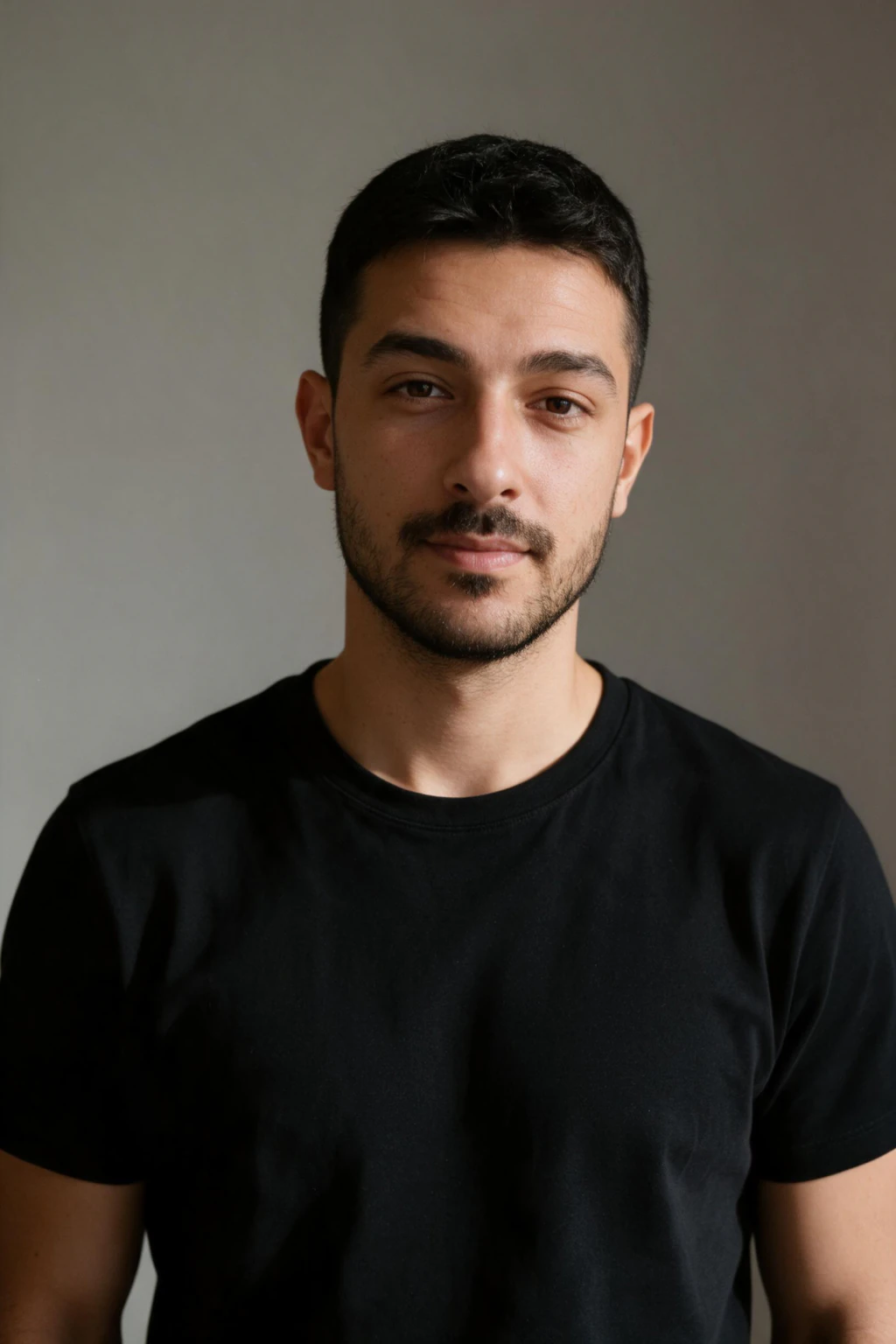
One phone selfie to 5 AI photos of the same person
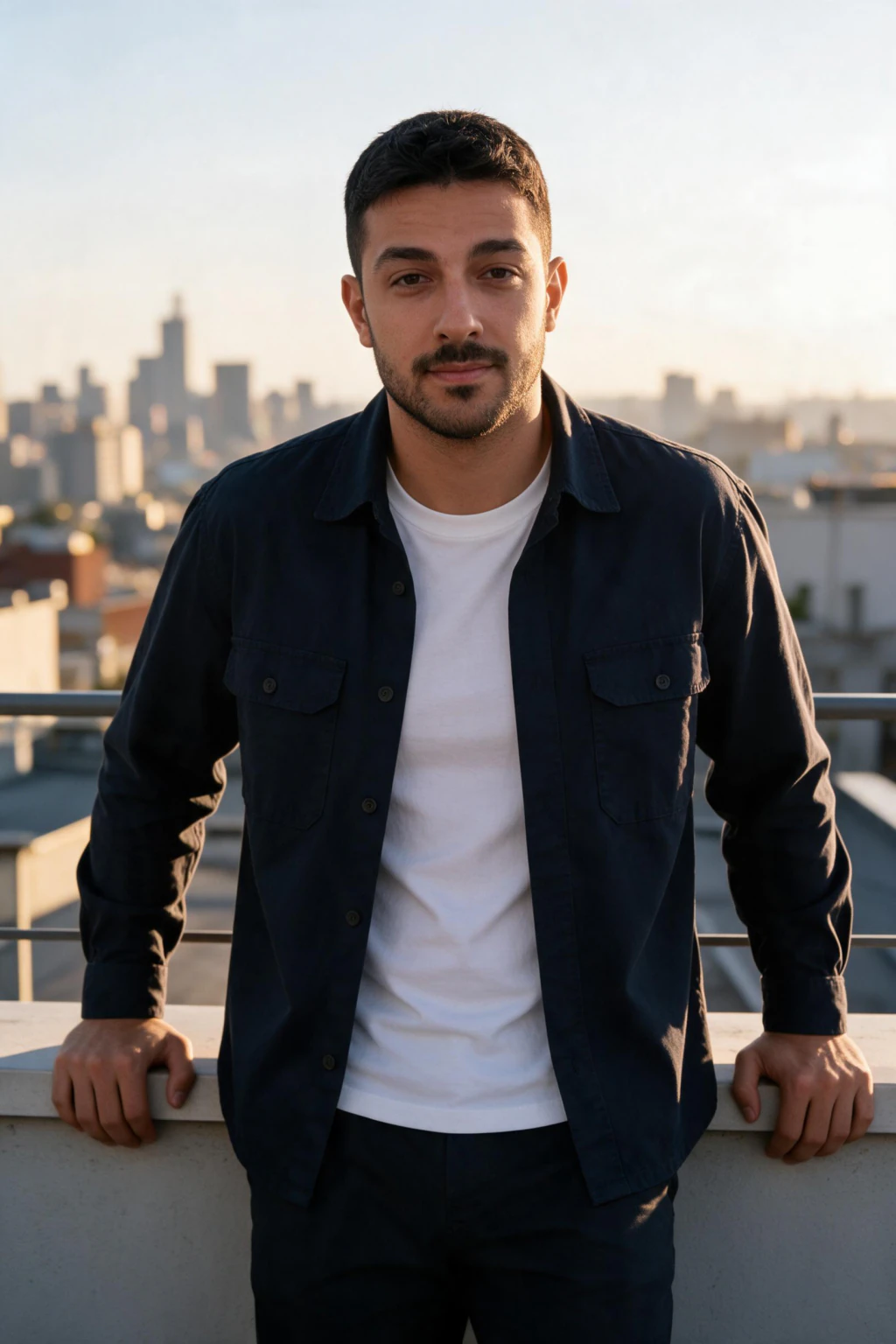
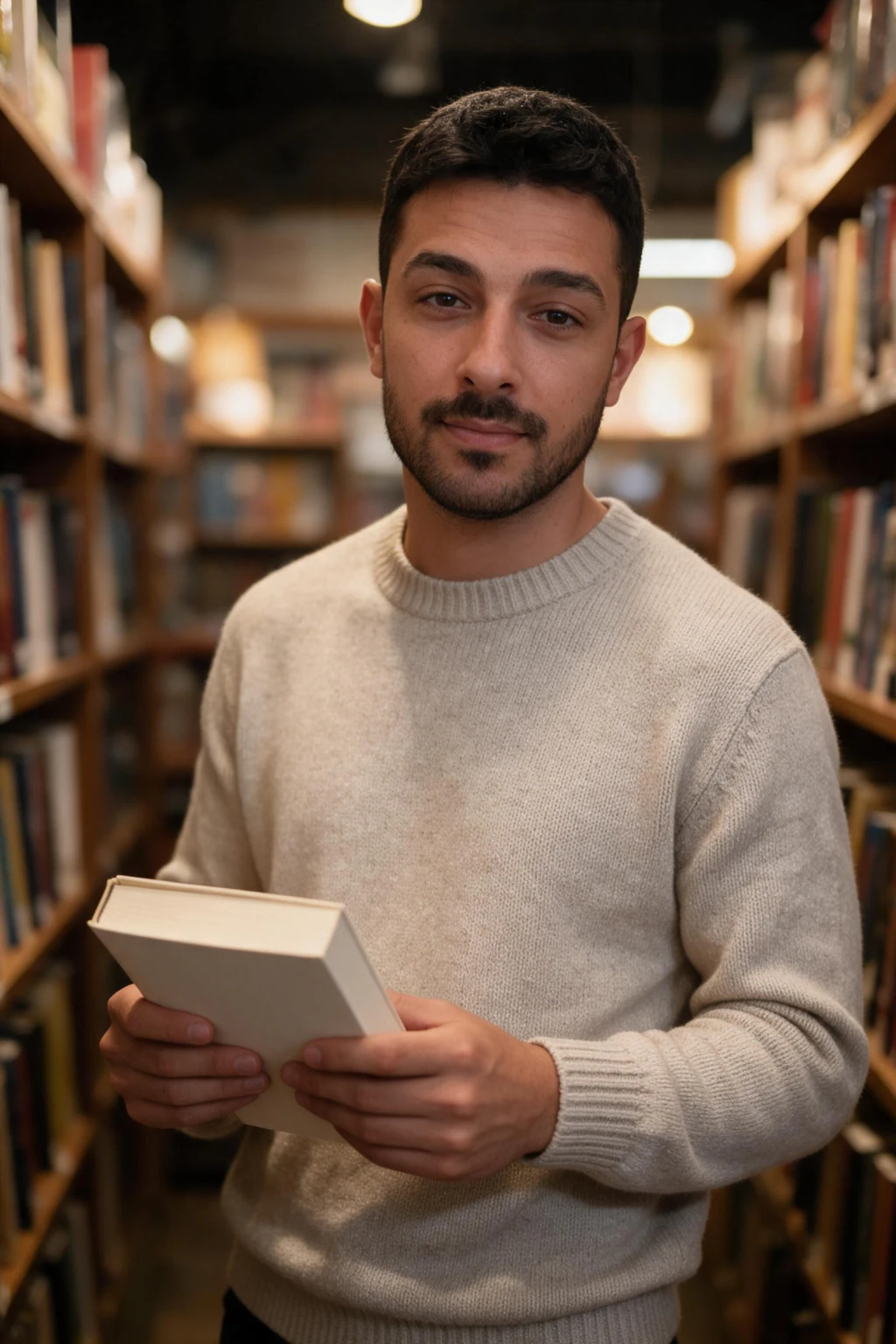
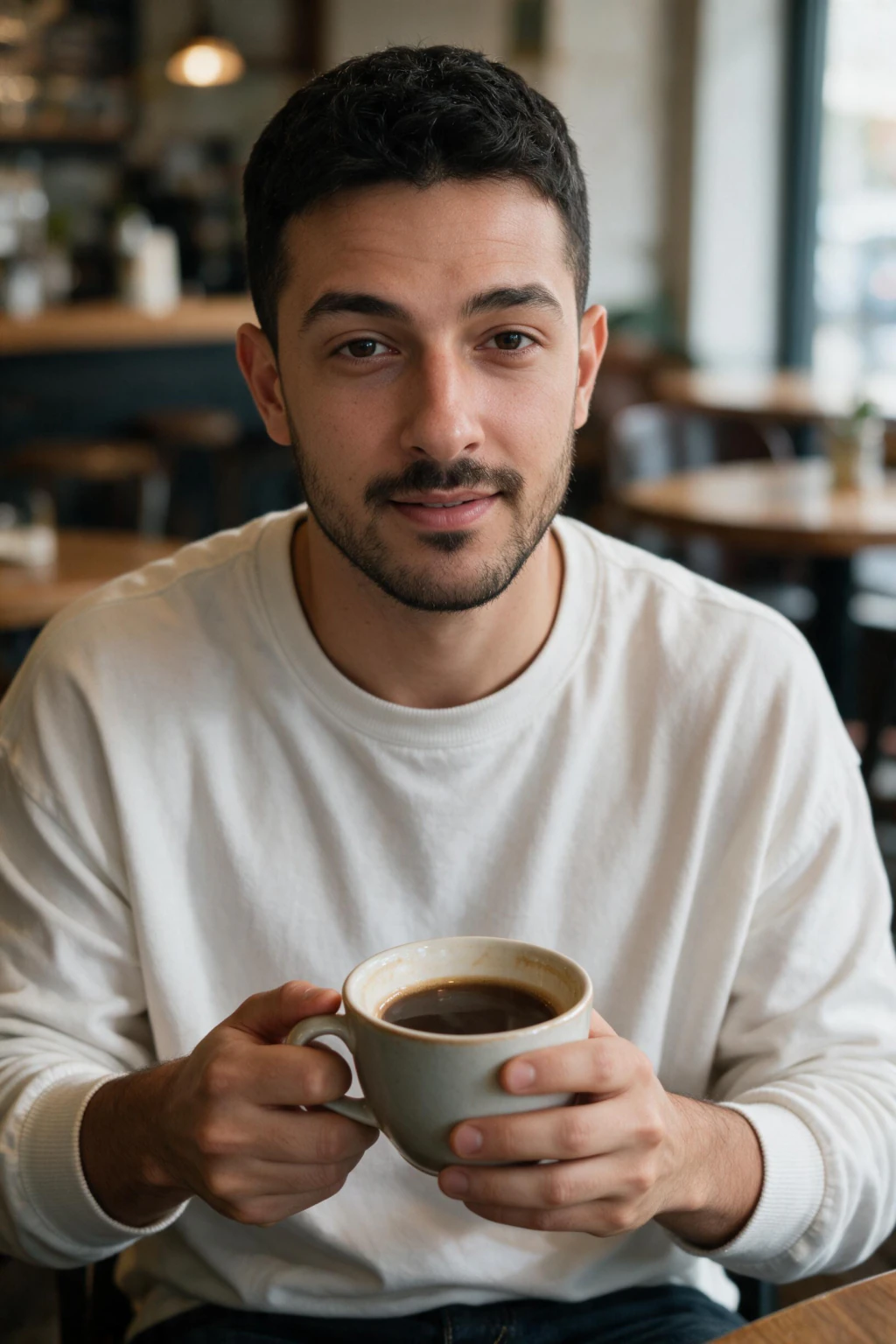
Why your first AI photos probably looked fake
If you just generated AI photos of yourself for the first time and they look slightly off, you are not alone. Almost every first-time user reports the same thing: the photos look impressive, but something about them reads as not quite real. That reaction is a good signal. It means your eyes are correctly catching the small problems that the AI did not solve on its first attempt.
The good news: the realism gap is fixable, and it almost always comes down to three inputs you control. What selfie you uploaded, what style you chose, and which outputs you kept. Change those three things and the same AI tool produces dramatically more realistic results.
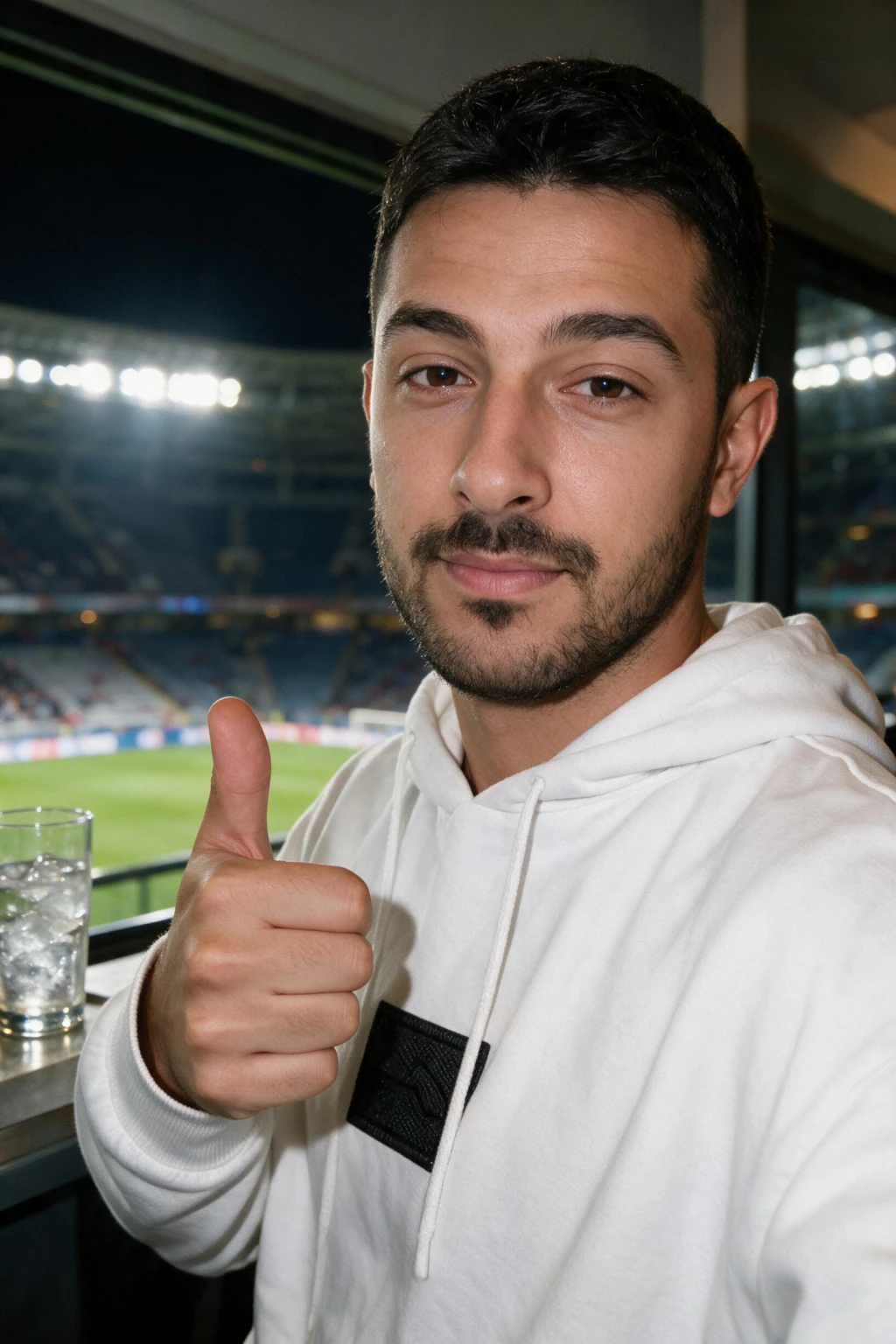
The 10-minute realism upgrade
If you only have ten minutes and want to fix the most common realism problems before generating again, do these four things in order.
First, take one new selfie right now on the rear camera, not at arm's length. Use a self-timer or ask someone in the room to take it. The wide-angle lens on the front camera at close range distorts your face, and that distortion carries straight into your AI output.
Second, turn off beauty mode and skin smoothing in your camera settings before taking those photos. Open the camera app, find the beauty filter or skin smoothing toggle, and disable it completely. Filtered selfies teach the AI a smoothed version of your face, which is one of the largest sources of plastic-looking outputs.
Third, take the photos near a window in soft daylight. Not in direct sun, not in a dark room, not under overhead office lights. Soft window light is the lighting condition AI photo generators handle most reliably, and it is the lighting your output will read as natural under.
Fourth, pick a natural lifestyle or professional pack instead of a dramatic editorial or studio one. Dramatic packs amplify any small imperfection. Natural packs hide them. Save the editorial style for after you trust the likeness.

The 4 mistakes that make first-time AI photos look fake
Mistake one: uploading a selfie that hides your face. A three-quarter angle, sunglasses, a cap brim across the eyes or a dim room all starve the model of the detail it rebuilds you from. Use one clear, front-facing selfie in good natural light with your face fully visible.
Mistake two: uploading filtered or beauty-mode photos. This is the single biggest cause of plastic-looking output. Open your phone's camera settings and turn off every smoothing, brightening, and beauty option before taking the selfie you upload.
Mistake three: choosing the most dramatic style on the first generation. Editorial black-and-white, studio spotlight, and cinematic lighting all amplify likeness errors. Start with natural lifestyle or business casual instead. Once you confirm the AI got your face right, branch into more creative styles.
Mistake four: keeping the first output you see. The first photo in a batch is rarely the best one. Quality generators produce a mix where roughly thirty to sixty percent of outputs are usable. Review the full batch and pick the strongest two or three, not the first.
What realistic AI photos actually have in common
Look closely at any AI photo that successfully passes as real. Five things are usually true at once.
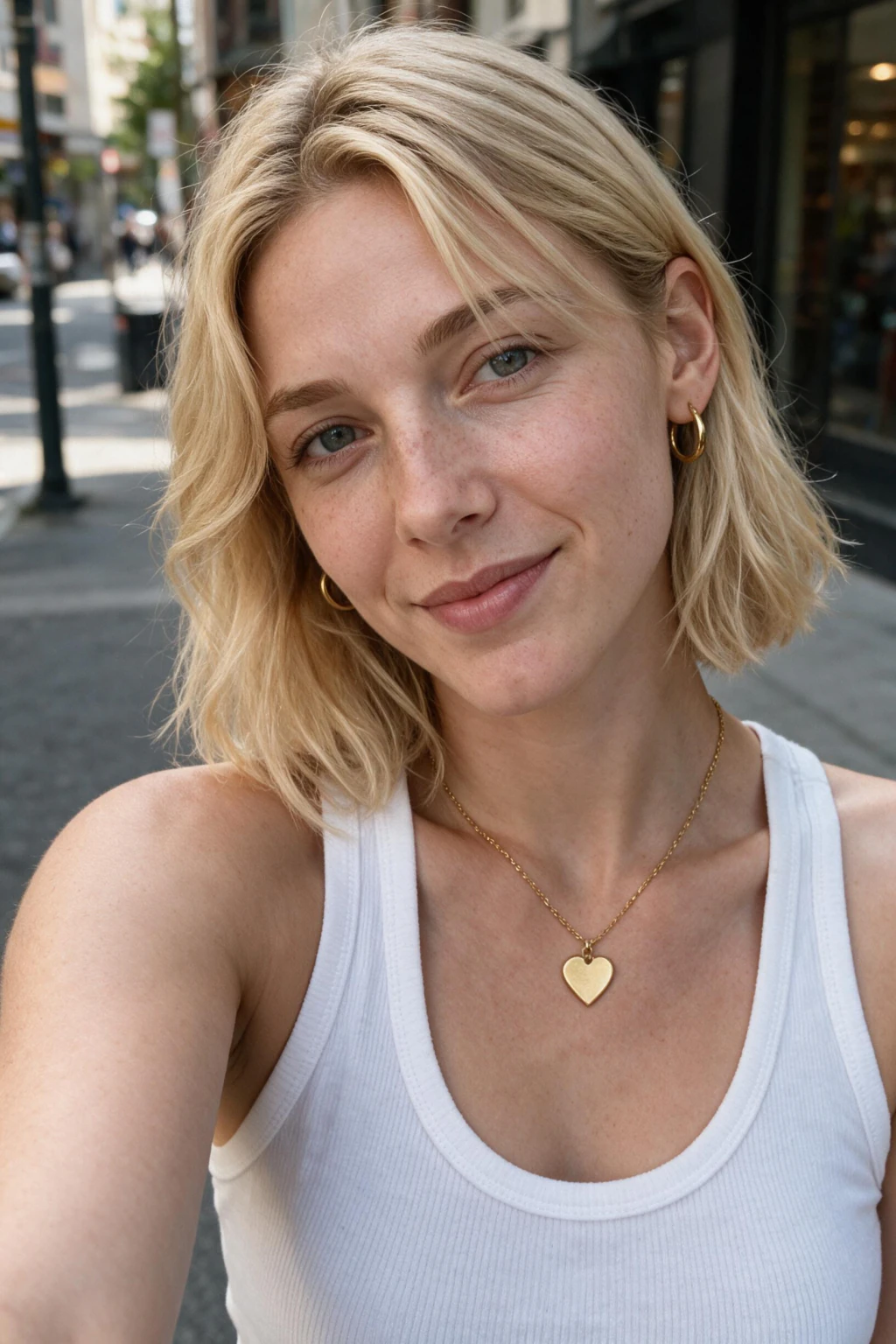
Skin shows visible pores and subtle tone variation, not airbrushed perfection. Eyes have matched catchlights, with the highlight in the same position in both irises. Hair edges meet the background cleanly, without the traced or sticker-like outline that low-quality generators produce. Lighting on the face matches lighting in the background, so a photo with a sunlit office background also has matching warm light on the subject's cheek. Wardrobe matches a realistic version of your usual style, not an idealised version.
Train your eye on these five signals when reviewing your batch. The outputs where all five are present are your keepers.
Before and after: what changes when you do the upgrade
Concrete numbers from typical first-time results versus a corrected workflow help calibrate expectations.
Typical first try: eight selfies, all arm's-length, beauty mode on, dramatic editorial pack chosen first. Usable outputs in the batch: roughly two out of twenty. Likeness rating from a friend: looks like a relative.
After the upgrade: one clear selfie taken on the rear camera, beauty mode off, soft window light, natural lifestyle pack chosen first. Usable outputs in the batch: roughly twelve out of twenty. Likeness rating from a friend: clearly recognisable, looks like you on a good day.
These numbers vary by person, but the direction is consistent. Realistic AI photos are produced by changing what you give the AI, not by switching tools repeatedly.
When to re-upload versus when to regenerate
If your output looks fake but the face is clearly yours, regenerate. Pick a different style, run another pass, and review the new batch. The AI has your likeness; the issue is style or selection.
If your output looks polished but does not look like you, upload a new selfie. Use one that fixes the gaps. Specifically, a shot taken on the rear camera, in natural light, front-facing with your face fully visible. A better upload is what fixes likeness; regeneration is what fixes style.
Most realism complaints come from regenerating when the right move was re-uploading. If three passes have not produced a result that looks like you, the answer is in the selfie you uploaded, not in the next generation.
How MakeAiPhotos handles the realism question
MakeAiPhotos renders from your own selfie and is tuned for photorealism rather than airbrushed aesthetics. The output preserves natural skin texture and accurate proportions when the input photos give the model enough variety to work from. You can open the AI photo generator and follow the upload prompts directly.
If you want to test the realism upgrade in practice, start with a small batch of well-prepared selfies. Use the four-step ten-minute upgrade above before uploading. A small first session is enough to confirm whether your results pass the realism checks before committing to a larger one. For a complete beginner walkthrough on the upload step itself, our how to make AI photos of yourself guide pairs cleanly with this one.
Frequently Asked Questions
- How do I make an AI photo more realistic in about 2 minutes?
- To make an AI photo more realistic in about 2 minutes, take one new selfie on the rear camera with beauty mode off in soft window light (5 minutes), upload it, then generate again with a natural lifestyle pack instead of a dramatic editorial one. Most beginners go from 2 out of 20 usable outputs to 12 out of 20 with this single workflow change.
- How do I make AI photos of myself look realistic?
- Take a new selfie on the rear camera with beauty mode turned off, in soft natural daylight, front-facing with your face fully visible. Upload that one selfie, pick a natural lifestyle or professional style first, then review the full batch and keep only outputs with visible skin texture and matching eye highlights.
- Why do my first AI photos look fake even though they are high quality?
- First-time AI photos usually look fake for one of three reasons. Selfies were taken at arm's length and contain wide-angle distortion, beauty filters were on and taught the AI a smoothed version of your face, or the chosen style was too dramatic and amplified small imperfections. Fix any one of those and realism improves significantly.
- What is the single biggest fix for fake-looking AI photos?
- Add one new selfie taken on the rear camera, with beauty mode off, in soft window light. Wide-angle distortion from arm's-length selfies is the most common cause of unrealistic output, and using the rear camera fixes proportion errors that no style change can recover from.
- How long does it take to fix unrealistic AI photos?
- About ten minutes to take a new selfie and about 2 minutes to generate again from it. The fix is mostly in preparation, not in tool switching. Most people see substantially better results on their second batch when they apply the four-step upgrade before uploading again.
- Should I keep regenerating until I get realistic AI photos?
- Only if the face is already clearly yours and the issue is style. If three regeneration passes still produce results that do not look like you, the problem is your training data and not the generator. Add varied, unfiltered, one-metre-distance selfies and retrain rather than regenerating from a weak training set.
- Will more expensive AI photo tools produce more realistic output?
- Sometimes, but not as much as people expect. Tool quality matters less than input quality and style choice. A high-end tool with weak inputs still produces unrealistic results, and a mid-tier tool with strong inputs produces convincing ones. Improve the inputs first before trying a different platform.