AI headshot doesn't look like me: the 60-second quick fix
If "AI headshot doesn't look like me" is the first thing you typed into Google, start here before you re-pay for new credits. The 60-second AI headshot fix: re-judge your three best outputs at LinkedIn thumbnail size (96 pixels), not fullscreen. About half of likeness complaints disappear at the size where strangers actually see the photo.
Still feels like AI photos of a different person? Then the real fix is upstream in your selfie, not in the model. Work the 7 fixes below in order. They are ranked by how often they solve the AI headshot not me problem in support tickets.

One phone selfie to 5 AI photos of the same person
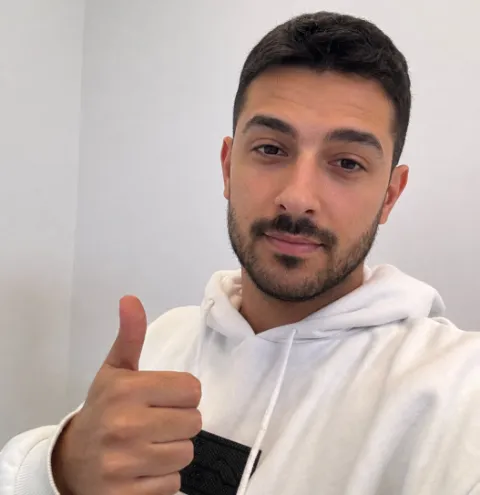
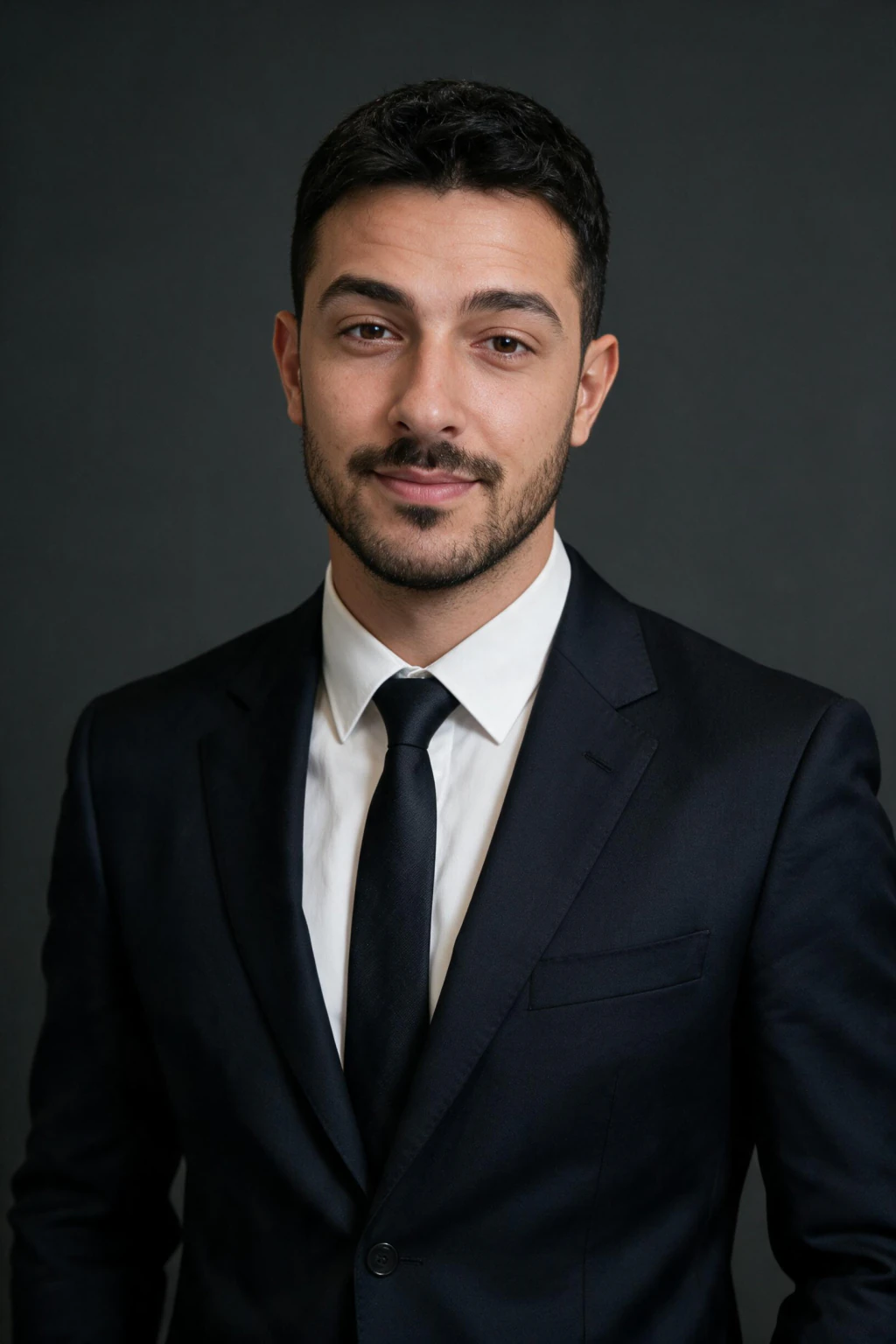
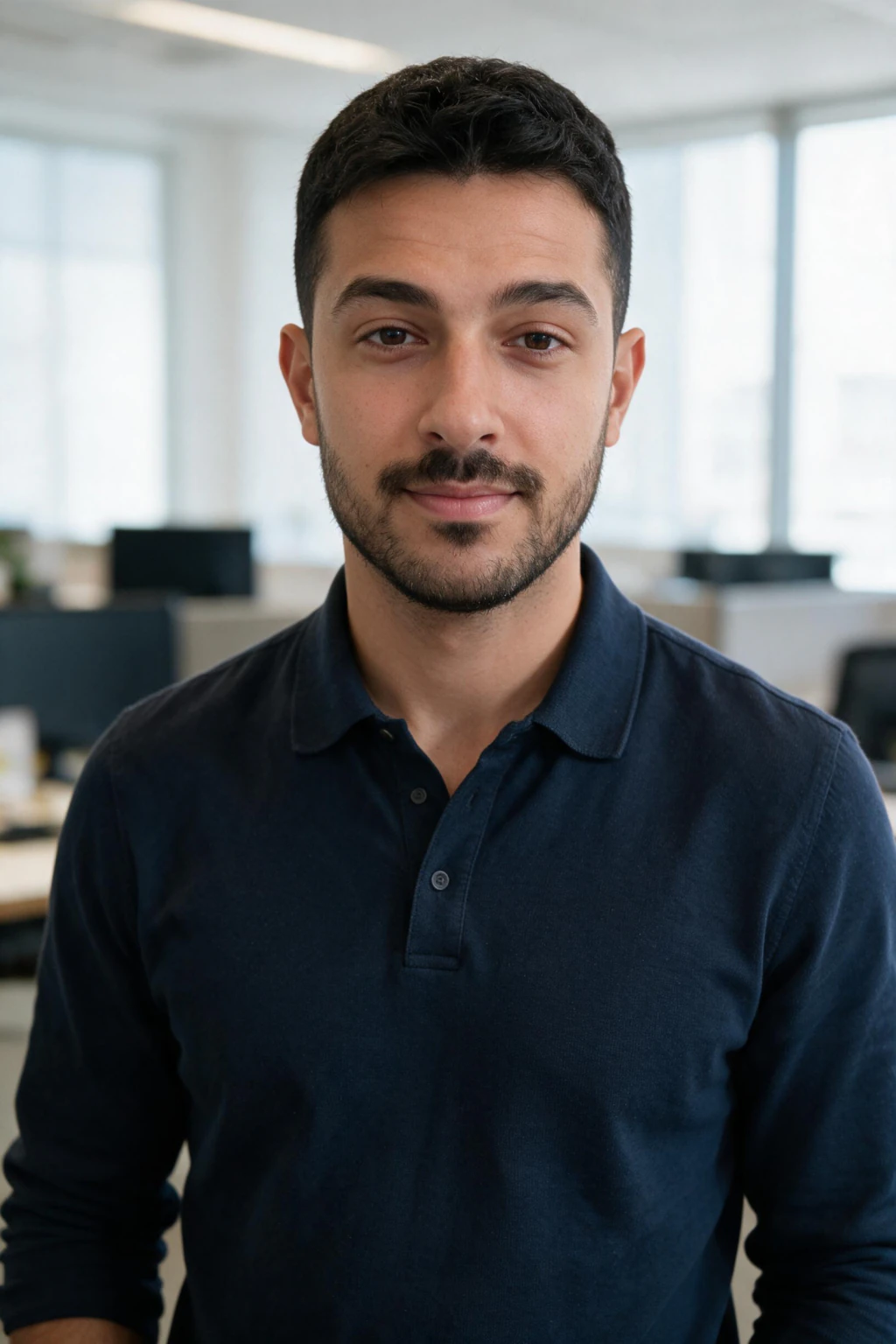
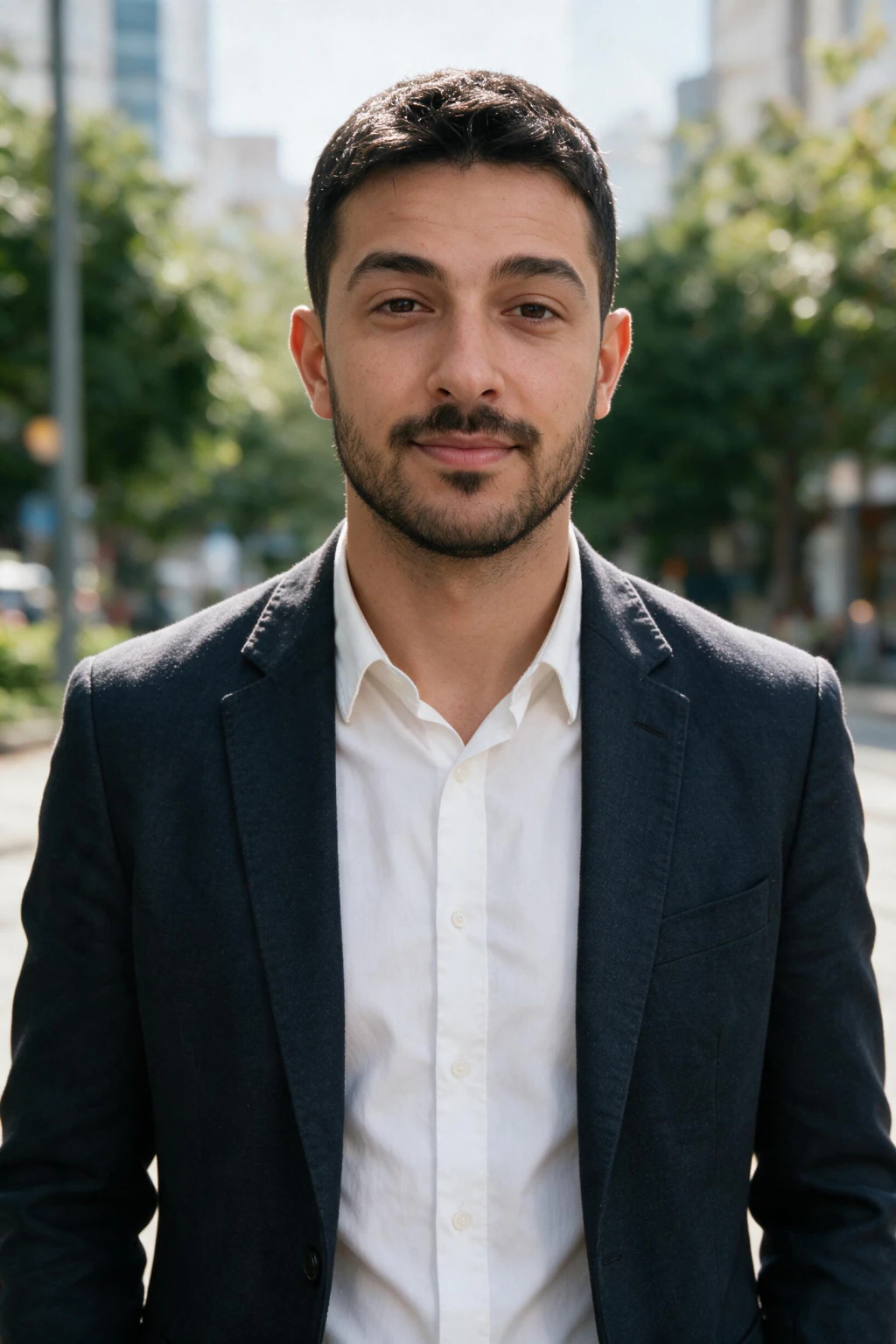
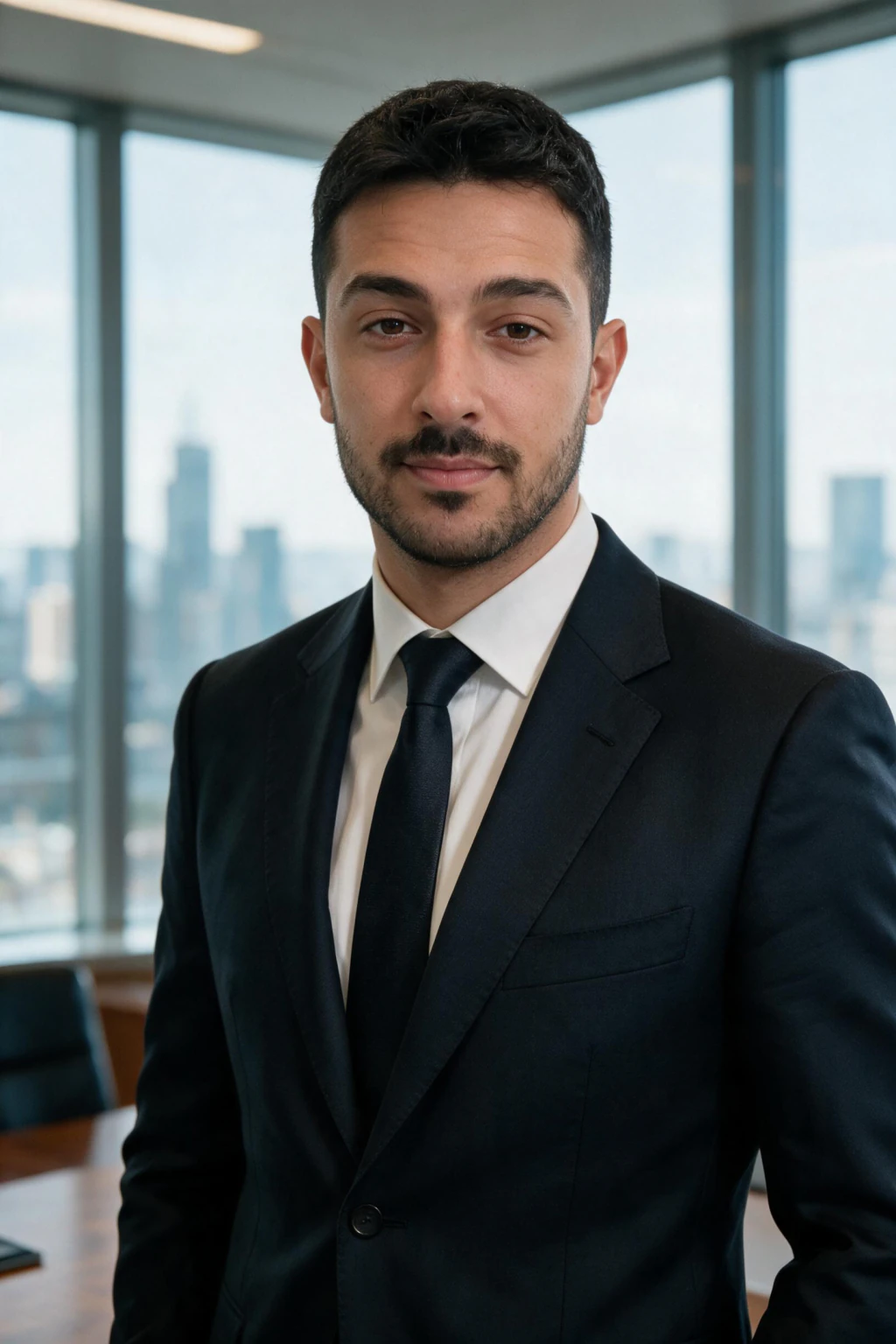
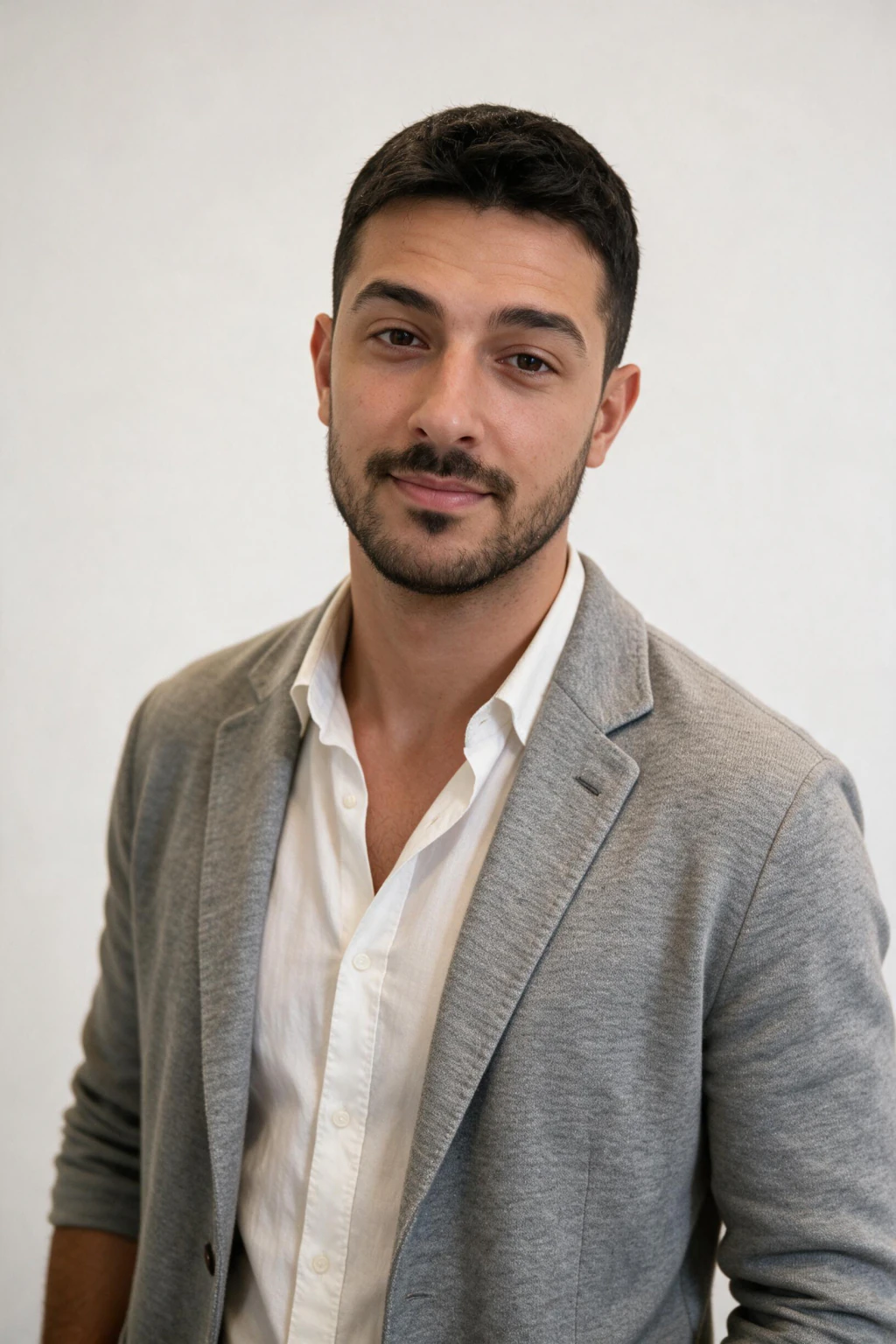
Why AI headshots do not look like you (3 root causes)
AI headshot likeness fixes only work if you know which of three things is breaking your face: (1) a input selfie with wide-angle phone-front-camera distortion, (2) filters or beauty modes hiding real skin texture and eye shape, or (3) a creative pack that pushes bone structure and lighting harder than your selfie can support.
Fix the inputs and the style brief first. Swapping tools rarely outruns a bad input selfie. For the full cause-by-cause diagnostic see /blog/why-do-ai-photos-of-me-not-look-like-me. This guide is the action layer: what to do next.
Why your AI headshot looks right to friends but wrong to you
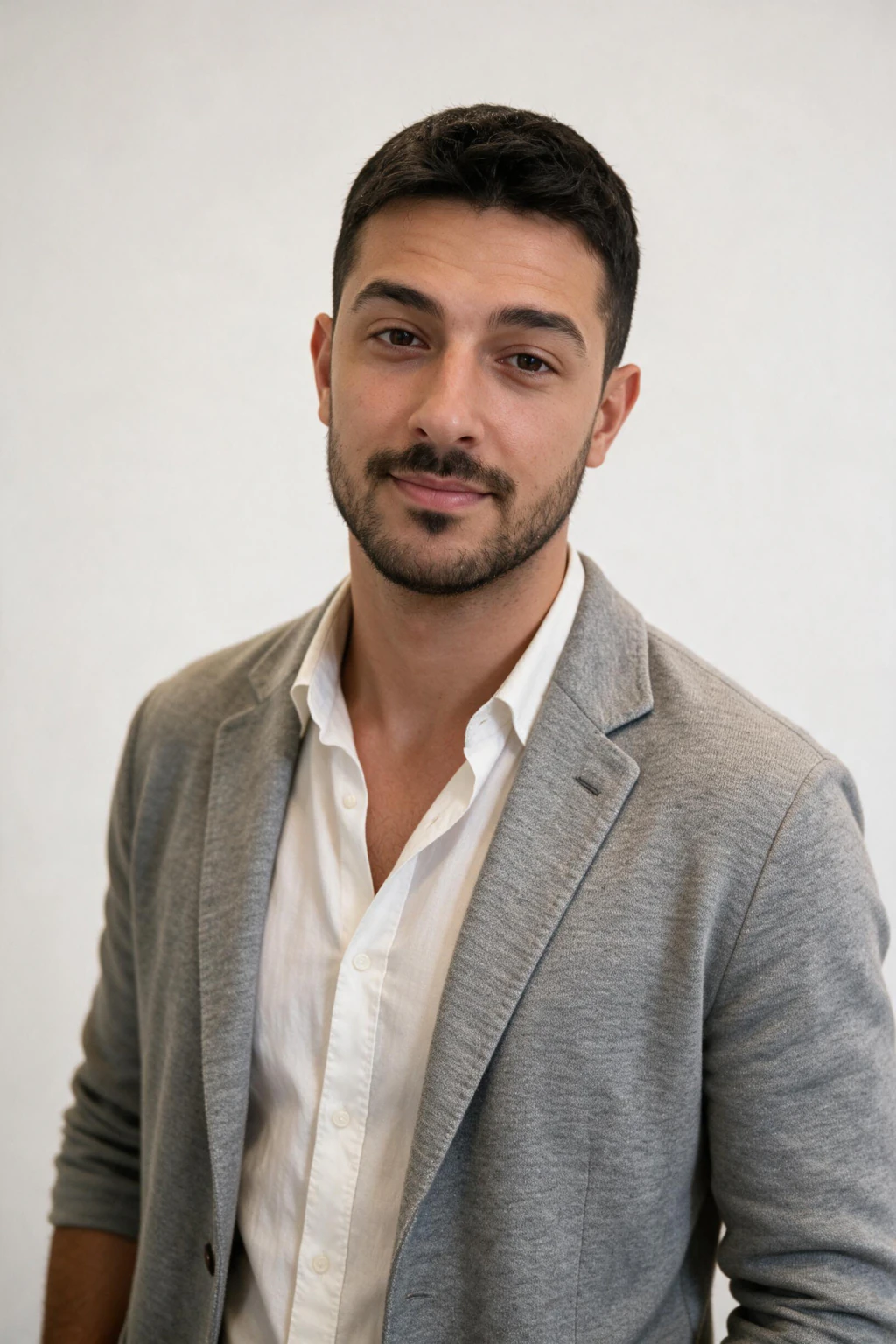
There is a fourth cause that has nothing to do with the AI. You meet your own face in the mirror, flipped left to right. Everyone else, and the AI, works from the unflipped version, so a perfectly accurate headshot can feel subtly wrong to you alone.
Run this test before changing anything: flip the headshot horizontally in any photo viewer. If it suddenly reads as you, the likeness was never broken, your reference point was.
When friends say it looks like you and you disagree, trust the flip test over your gut. Your friends see the same face the AI worked from.
Fix 1, Use a rear-camera shot, not an arm’s-length selfie
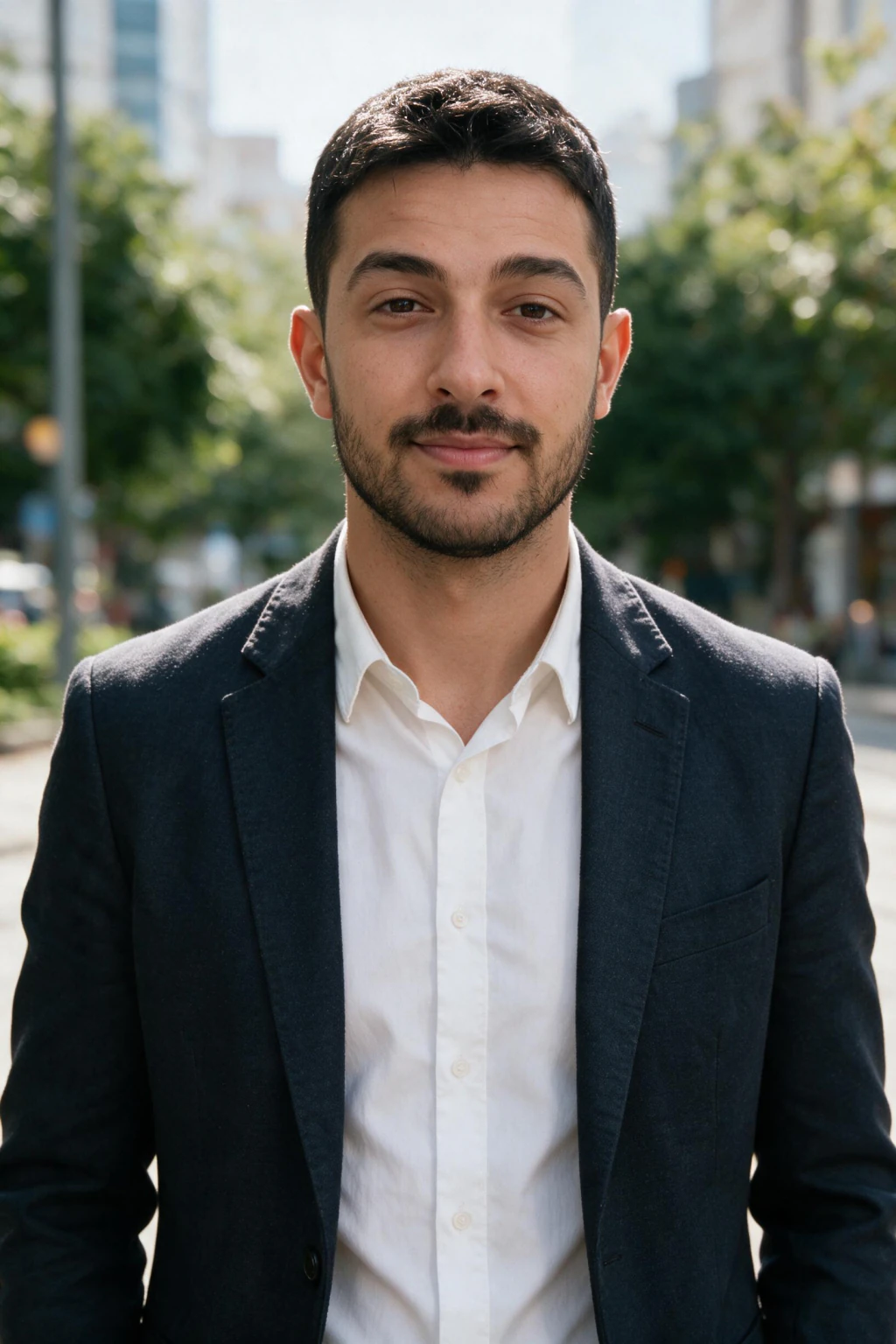
Phone front cameras sit close to your face. That wide-angle lens stretches the centre of the face and shrinks the edges. If every input selfie is from the same distance, the AI may “correct” toward a longer-lens look, and your brain reads that as not you.
Add several photos taken from about one metre away, chest-up, with your face still large enough in frame. Mix straight-on and slight left or right turns under even light.

Fix 2, Strip filters, beauty modes, and heavy night shots
Filters bake in fake skin tone and blur detail the model needs to anchor eyes, nose shape, and pores. Nightclub and neon gym shots can look cool but often starve the model of true skin colour.
Prefer plain daylight by a window or soft outdoor shade. You want boring, accurate photos over pretty but misleading ones.
Fix 3, Cover hairline, glasses, and facial hair consistently
If you usually wear glasses, include them in most uploads or expect surprises in outputs. Same for beards, fringe lines, and hats: either commit in the selfie you upload or expect variance.
Fix 4, Match the pack to the job
Editorial and drama packs push lighting and pose harder than LinkedIn Authority. If likeness is shaky, run a conservative professional pack first until you have a baseline that matches your mirror.
Open https://www.makeaiphotos.com/ai-linkedin-headshots for headshot-first prompts, then branch into modeling or lifestyle packs once you trust the face lock.
Fix 5, Judge at LinkedIn size, not only fullscreen
A frame can feel “off” at full resolution yet look like you at 96 pixels. Your public headshot life is mostly small crops. Zoom out before you throw away a good match.
Fix 6, If only one angle fails, it is often teeth or smile
Smiles are high detail. Try neutral or closed-mouth professional looks first, then iterate on a relaxed smile once identity is stable.
Fix 7, Re-upload rather than fight bad data
If five clear daylight uploads still drift, replace the weakest half of the set with new angles from a different day. Lighting that repeats the same shadow pattern on every photo gives less 3D information than you think.
When the new set is ready, re-run at /generate, then come back to step F of the checklist below. Re-running is cheap here: MakeAiPhotos uses a one-time $9.99 credit pack with no subscription, and regenerating from a new selfie on an existing account only costs the generation step.
When to stop fixing and re-run from scratch
Iterating on outputs has a limit. Use this 3-signal rule: (1) the eyes still read wrong at thumbnail size, (2) the jawline is a different shape than yours, or (3) friends fail a blind pick-me-out test against two other outputs.
If two or more signals fire, stop cherry-picking frames. Take one new rear-camera selfie in daylight, re-upload it, and regenerate. A fresh uploaded selfie resets the likeness in one pass, where frame-picking would burn an afternoon.
Checklist before you upload again (copy this order)
Step A: skip a filtered or blurry shot. Step B: take one chest-up selfie on the rear camera. Step C: include glasses or not, matching how you want the final headshot. Step D: shoot in soft daylight. Step E: run a conservative LinkedIn pack first at /generate, export 3 finalists, zoom to thumbnail size, pick the one that still matches your driver-style photo or ID-adjacent mental model. Step F: only then try editorial or drama looks.
If you skip straight to dramatic packs while likeness is unstable, you are optimising the wrong variable. For the underlying causes, cross-reference /blog/why-do-ai-photos-of-me-not-look-like-me. For the full upload workflow, see AI photos of yourself.
Frequently Asked Questions
- Why does my AI headshot look like someone else?
- Usually a weak input selfie: a heavy filter, a wide-angle closeup, or conflicting glasses and facial hair. Use a rear-camera shot in natural light and reduce stylised packs until likeness stabilises.
- Why does my AI headshot look too smooth, like plastic skin?
- Filtered or low-resolution input selfies erase pore-level texture, so the model invents smoothness where your real skin should be. Turn off beauty mode, re-upload an unfiltered rear-camera shot, and pick a conservative professional pack that preserves skin texture.
- How do I make my AI headshot look more like me?
- To make your AI headshot look more like you, improve your selfie: a rear-camera chest-up shot rather than an arm's-length closeup, a neutral expression, consistent glasses and facial hair, daylight colour accuracy, and one sharp image. Then run a conservative LinkedIn pack at /generate and pick outputs at LinkedIn thumbnail size, not only fullscreen.
- Why does my AI headshot look older or younger?
- Professional lighting and retouching conventions can read as a different age if your selfie was harshly lit or low resolution. Use a sharp, recent selfie and pick a natural retouch level when the product offers it.
- How many selfies should I upload to fix likeness?
- Most workflows work best with one clear selfie. Quality beats quantity: a smaller set of sharp, filter-free images often beats dozens of duplicates from the same pose.
- Why is my AI headshot blurry or soft on the eyes?
- Low-resolution uploads, motion blur, or heavy compression from messaging apps. Re-shoot on your phone’s main rear camera or a stable selfie with focus on the eyes; transfer files without extra compression where possible.
- Should I use the same tool again or try a new one?
- If inputs were weak, fix inputs first, that solves most cases. If inputs were strong and outputs still drift, compare another generator that works from your own face rather than one-shot face swap.